Skip to Primary NavigationSkip to ContentSkip to Footer
  • Personal
  • Business
  • Enterprise
  • Deals
  1. Help & Support - Optus/
  2. Articles/
  3. Setting up the Optus 4G Home Internet Modem

Setting up the Optus 4G Home Internet Modem

This article has all the information you need on how to install the Optus 4G modem and connect your devices.

If you received your modem before September 2022, refer to the Quick Start Guide.
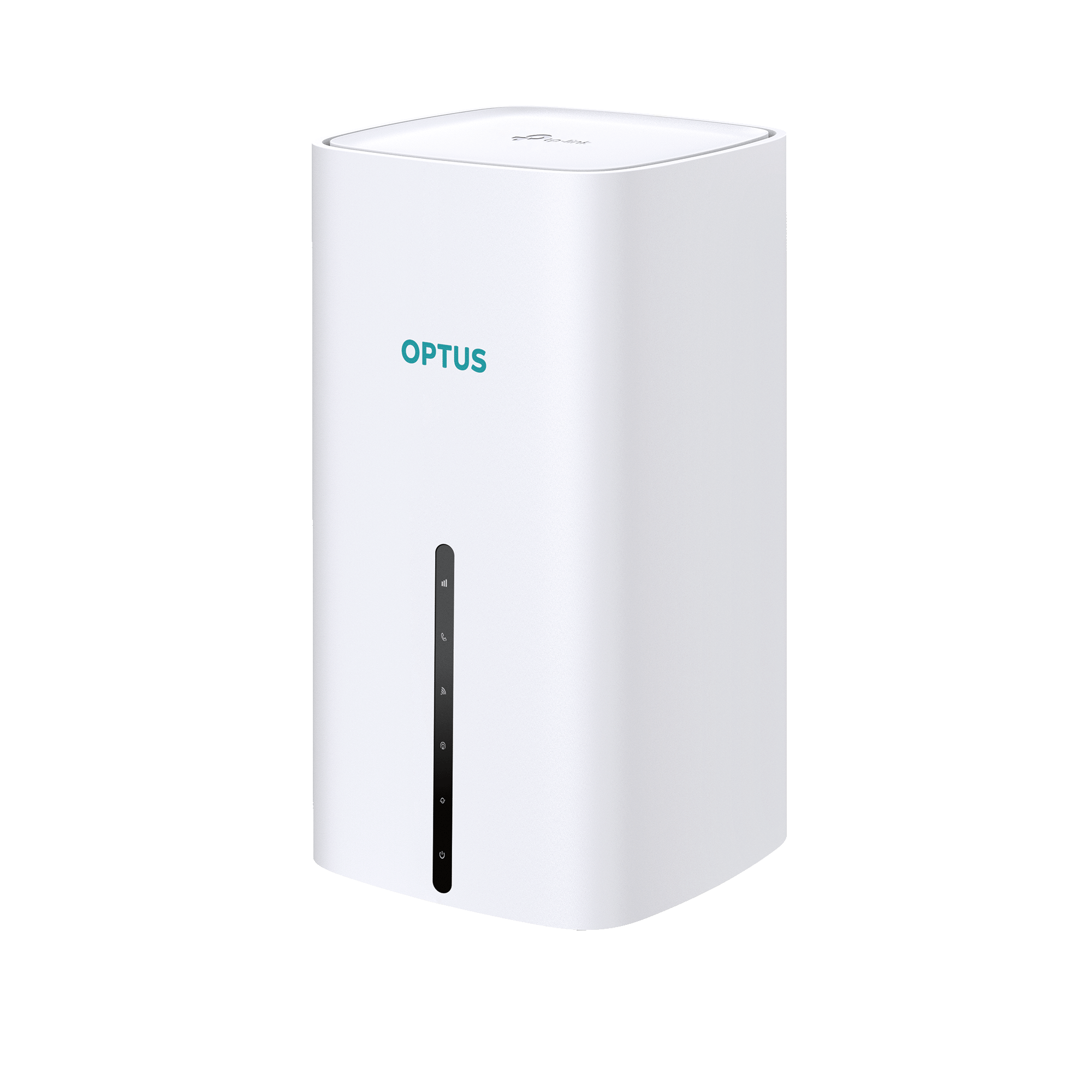
You must connect the supplied modem to the Optus 4G Network by inserting your Optus Nano SIM into the Optus 4G modem.


Connecting successfully will allow you to access:

  • Comprehensive Optus technical support
  • Selected Living Network features
  • Optus Coverage Commitment 

In the box you'll receive:


  • 1 x Optus 4G WiFi Modem (B628) 
  • 1 x Quick Start Guide
  • 1 x Modem power adapter and cable
  • 1 x Yellow ethernet cable
  • 1 x Optus SIM (white Nano SIM can be pushed out) - New customers only

If this is your first 4G Home Internet service with us, a SIM card will be provided with your modem.

If you're an existing 4G Home Internet customer, you can use the SIM card inserted in your current 4G modem.

  1. Locate the SIM included in your Modem packaging
  2. Press out the smallest size SIM (called a Nano sim) from the card provided
    • If you are an existing Optus 4G Internet customer remove your existing SIM from your current modem as you can utilise that in your new device.
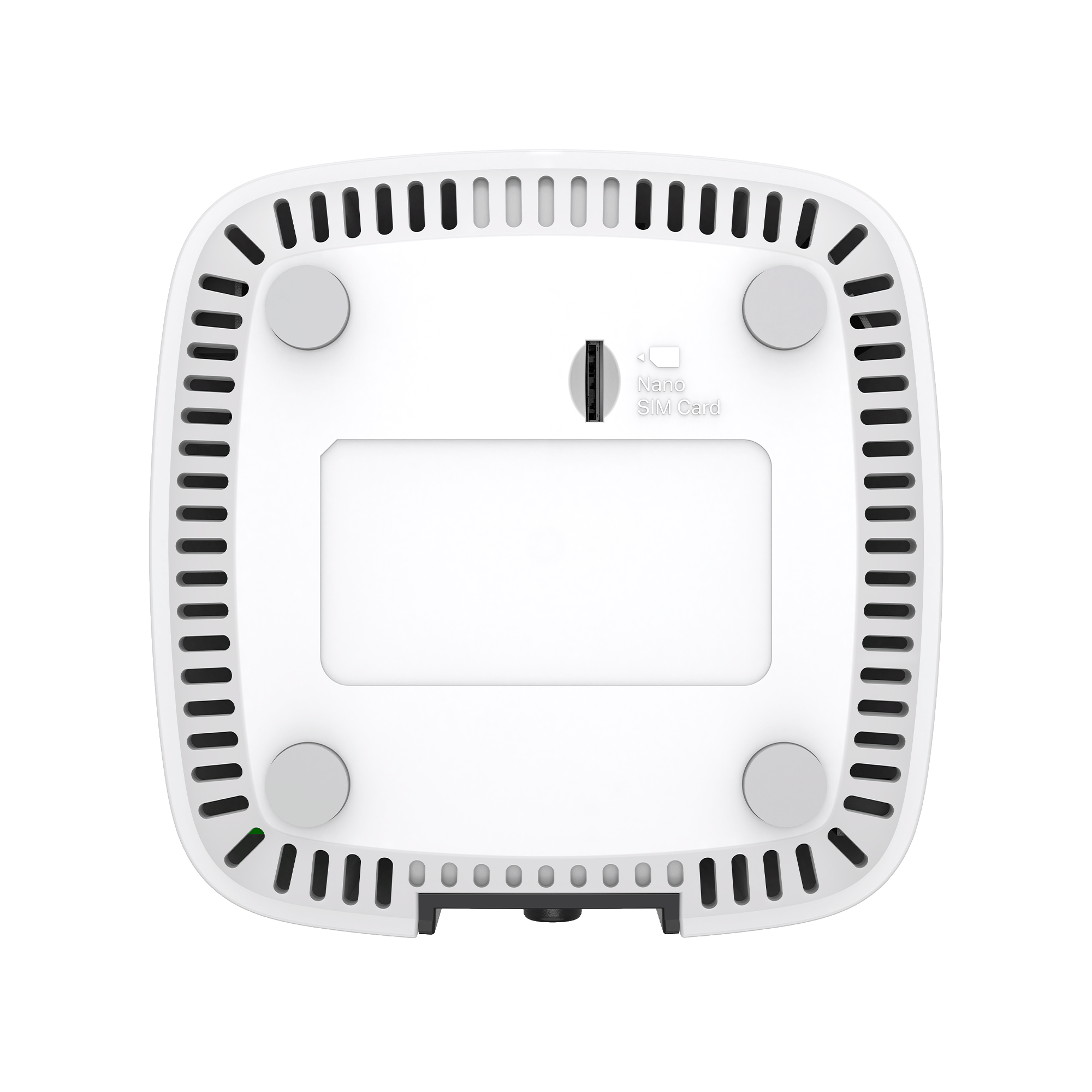
  3. Turn the modem upside down
  4. Locate the Nano SIM Card holder slot
  5. Orient the Nano SIM to match the image near the slot
  6. Slide the Nano SIM into the slot until you feel it click into place

If the SIM doesn’t click into place, you may have the SIM card the wrong way around. Withdraw the SIM, turn it around so that it is oriented correctly and insert it again. 

  1. If possible, place the modem close to a window and free from major obstructions to ensure you receive the best possible connection
  2. Connect the power cable to the back of the modem and connect the adapter plug to a power supply 
  3. Push the power button located at the bottom of the modem to turn it on
  4. Once turned on, the light indicators on the front of the modem will show: 
    1. a green light for the power LED
    2. the middle WiFi LED light will show when the WiFi has successfully switched on
    3. the top signal LED light will show green for a strong network signal, yellow for a moderate signal and red for no signal

Connecting to WiFi
  1. Your WiFi name (SSID) and password (WiFi key) can be found on the bottom of the modem
  2. Find the correct WiFi network from your device's list of available WiFi networks and enter your password to connect
  3. To optimise your WiFi experience:
    1. Place the modem at least one metre off the floor and in a central part of your home or premise.
    2. Make sure there is space and ventilation around the modem
    3. Avoid placing the modem near large appliances and any Bluetooth devices
    4. Connect to the 5Ghz band for the fastest speeds
Connecting using Ethernet cable
  1. Connect your devices directly to the modem using the supplied yellow ethernet cable
  2. Plug the yellow ethernet cable into one of the ports labelled LAN on your modem
  3. Plug the other end into your device
Using a web browser
  1. Open a web browser on your connected computer or smart device and go to 192.168.8.1
  2. Enter the password located on the bottom of the modem
  3. If required, set up a new WiFi name and / or password
  4. Select Home to see modem and connection information
Using My Optus app
  1. Open My Optus app from your connected smart device
  2. From the Home page, select Help 
  3. Under Tools, select Check connection health to see more information about your Network Pulse, including speed and suitability for various internet related tasks

For a detailed step-by-step guide for the Optus 4G WiFi modem, visit our Device Guides or view the modem quick start guide.


Contact us to speak to an expert or log in to My Optus app and message us for 24/7 support.

Modem user guides for Home & Office Internet

WiFi connectivity & troubleshooting

Related Articles

Mobile Broadband & 4G Home Internet slow speed/dropout troubleshooting

Modem user guides for Home & Office Internet

WiFi connectivity & troubleshooting

Setting up your Nokia FastMile 5G Gateway 3 Home Internet modem

How to change your 4G Home Internet plan

Popular articles

Orders, deliveries & returns

How to check network status & outages

Home Internet WiFi username & password help

Home Internet troubleshooting

Get in touch

  • Get My Optus app
  • Contact us
  • Find a store

Need more help?


Getting started


Billing and recharge


Troubleshooting


Device Guides


5G Mobile


Broadband & NBN


Manage my account


Optus Sport


Email


5G Home Broadband


Entertainment


Coverage and travel


Home phone


Business


Consumer advice


More from Optus

  • My Optus App
  • SubHub
  • Accessories
  • Student Hub

Customer Service

  • Contact Us
  • Help & Support
  • Store Locator
  • Payment Assistance Policy
  • Feedback & Complaints
  • Report a service outage

About Us

  • About Optus
  • Careers
  • Corporate Information
  • Media Releases
  • About Singtel
  • Accessibility

  • Blog
  • Connect With Us on facebook
  • Connect With Us on instagram
  • Connect With Us on tiktok
  • Connect With Us on linkedin
  • Connect With Us on twitter
  • Connect With Us on youtube

  • Critical Information Summaries
  • Standard Agreement
  • Privacy, Security & Safety

Connect with us

  • Blog
  • Connect With Us on facebook
  • Connect With Us on instagram
  • Connect With Us on tiktok
  • Connect With Us on linkedin
  • Connect With Us on twitter
  • Connect With Us on youtube
  • Critical Information Summaries
  • Standard Agreement
  • Privacy, Security & Safety
© 2026 Singtel Optus Pty Limited
Optus acknowledges the Traditional Custodians of the lands, waters and skies across Australia. We pay our respects to Elders past and present and honour the strength and continuity of the world's oldest living cultures.