Skip to Primary NavigationSkip to ContentSkip to Footer
  • Personal
  • Business
  • Enterprise
  • Deals
  1. Help & Support - Optus/
  2. Articles/
  3. Mobile Broadband & 4G Home Internet slow speed/dropout troubleshooting

Mobile Broadband & 4G Home Internet slow speed/dropout troubleshooting

Are you experiencing slow speeds or dropouts with your Mobile Broadband or 4G Home Internet service?

In this article we'll walk you through some troubleshooting steps to get your service up and running again.
First, let's check the network in your area.

  1. Head to the Network Status page
  2. Click the Mobile Outages tab
  3. Search your address, suburb name, or a place
  4. If there's no visible network issues, continue to the 2. Restart your modem or device section below

Understanding the map

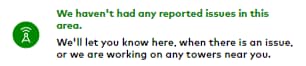
  • Green tower: No known outages in the page
    • If you're experiencing a service disruption that we don't know about, you can report an issue to us
      Green tower means no known outages

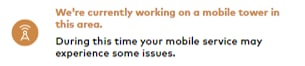
  • Orange tower: Planned outage
    • There's a planned outage nearby that may cause disruption to your mobile service
      Orange tower means planned outage

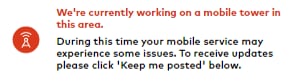
  • Red tower: Planned outage
    • There's a planned outage in your vicinity that may cause disruption to your mobile service
    • You can subscribe to get updates by clicking Click here to keep me posted
      Red tower means planned outage in area
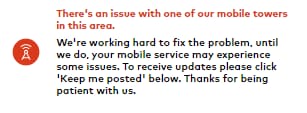
  • Red tower: Unplanned outage
    • There's a unplanned outage in your vicinity that may cause disruption to your mobile service
    • You can subscribe to get updates by clicking Click here to keep me posted
      Red tower means unplanned outage in area

If there are no visible network issues, continue to Restart your modem or device below.

  • Power down your modem and any other devices (e.g. phone, computer) you have connected. If your primary device is an iPad or tablet, switch it OFF
  • After 2-3 minutes, power up your modem or primary device
  • Reconnect your devices (if applicable)
  • Try to access the network again

Note: Instructions may differ depending on your device. Check out our device guides for device specific step-by-step instructions.

If you're still experiencing slow speeds or dropouts, continue to Try connecting a different device below.

I'm using a modem:

  • If available, try connecting a different device (e.g. phone, computer) to your modem to check if the issue is specific to one of your devices
  • Ensure all other devices are disconnected from the modem when attempting this step. Having multiple devices connected to the modem at once can further slow your speeds

I'm using a tablet:

  • If you're using an iPad or tablet as your primary device, try inserting the data SIM into an alternate device
  • If you're using a mobile broadband service with an iPad or tablet, please bear in mind that the data SIM won't work in a mobile phone. You'll need to use another tablet device or modem to perform this test

If you're still experiencing slow speeds/dropouts, contact us and we'll do our best to help out.

Please advise the technician what troubleshooting you've already done.

Note: We may ask you to repeat some of the troubleshooting steps so we can check how your service is responding on our network.

If you can't connect to the internet at all, you can also check out this article for Mobile Broadband connectivity troubleshooting steps.

Or read more about your Mobile Broadband APNs and technical settings here.

Related Articles

Your bill explained

Change ownership of your service

How to unlock your mobile device from the Optus network

A guide to eSIM

Home Internet WiFi username & password help

Popular articles

Orders, deliveries & returns

How to check network status & outages

Home Internet WiFi username & password help

Home Internet troubleshooting

Get in touch

  • Get My Optus app
  • Contact us
  • Find a store

Need more help?


Getting started


Billing and recharge


Troubleshooting


Device Guides


5G Mobile


Broadband & NBN


Manage my account


Optus Sport


Email


5G Home Broadband


Entertainment


Coverage and travel


Home phone


Business


Consumer advice


More from Optus

  • My Optus App
  • SubHub
  • Accessories
  • Student Hub

Customer Service

  • Contact Us
  • Help & Support
  • Store Locator
  • Payment Assistance Policy
  • Feedback & Complaints
  • Report a service outage

About Us

  • About Optus
  • Careers
  • Corporate Information
  • Media Releases
  • About Singtel
  • Accessibility

  • Blog
  • Connect With Us on facebook
  • Connect With Us on instagram
  • Connect With Us on tiktok
  • Connect With Us on linkedin
  • Connect With Us on twitter
  • Connect With Us on youtube

  • Critical Information Summaries
  • Standard Agreement
  • Privacy, Security & Safety

Connect with us

  • Blog
  • Connect With Us on facebook
  • Connect With Us on instagram
  • Connect With Us on tiktok
  • Connect With Us on linkedin
  • Connect With Us on twitter
  • Connect With Us on youtube
  • Critical Information Summaries
  • Standard Agreement
  • Privacy, Security & Safety
© 2026 Singtel Optus Pty Limited
Optus acknowledges the Traditional Custodians of the lands, waters and skies across Australia. We pay our respects to Elders past and present and honour the strength and continuity of the world's oldest living cultures.