ASUS Gaming Modem | Advanced Set up and Troubleshooting
Experiencing an issue, or looking to configure certain settings with your ASUS Gaming Modem? Try our steps below.
In this article, we'll cover some of the more advanced setup and troubleshooting:
- Resolving issues with TQoS
- Resolving Issues with Bandwidth Limiter
- Resolving a Double NAT error
- How to enable Band Steering
- I'm having trouble enabling Band Steering
- How to configure Band Steering for the best experience
Resolving issues with Traditional QOS (TQoS)
If you're not getting the expected bandwidth to a device, there may be an issue with your traditional QoS configuration. Try the troubleshooting steps below:
- Perform a speed test
- If there's an issue, refer to our slow speed troubleshooting guide
- If your speeds are within range, continue to step 2
- Confirm your service or device is listed, you'll need to log in to the modem GUI
- If your device isn't listed, add your device
- If your device is listed, continue to step 3
- Ensure bandwidth priority is set higher for your device
- If higher priority is set, remove then re add the device/service. If the issue is still not resolved, continue to step 4
- If higher priority hasn't been set, adjust the priority for the device/service, if the issue is still not resolved, continue to step 4
- Restart your Modem
- If the issue hasn't been resolved, continue to step 5
- Perform an engineering reset
- Re add your device/service to TQoS
If you're still having trouble, message one of our experts via My Optus app.
Resolving issues with Bandwidth Limiter
If your device is using more bandwidth than expected, or you' can't locate the device you want to add, try adding your device to Bandwidth limiter by following the steps below:
- Perform a speed test
- If your speeds aren't within range, refer to our slow speed troubleshooting guide
- If there isn't an issue, continue to step 2
- Confirm your device/service is listed
- If your device/service isn't listed, add your device
- If your device is listed, continue to step 3
- Remove and re-add your service/device
- If the issue is still not resolved, continue to step 4
- Restart your Modem
- If the issue isn't resolved, continue to step 5
- Perform a factory reset
- Ensure your devices/services are re-added to tQoS
- If the issue isn't resolved continue to step 6
- Perform an engineering reset
- Ensure your devices are re-added to tQOS
If you're still having trouble, message one of our experts via My Optus app.
Resolving a Double Nat error
If you're having trouble clearing a Double Nat error, follow the steps below:

- Within the Modem GUI, navigate to Open Nat
- Ensure that port forwarding has been enabled
- Select the + icon to start adding games to the list
Select the game title that the Double Nat error applies to
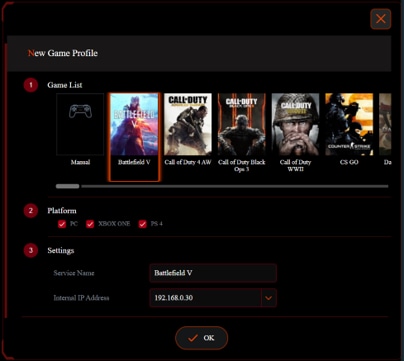
- Select the gaming platform that the Double Nat error applies to
- Select OK to save your settings
- If the issue hasn't been resolved, continue to step 7
- Perform a factory reset
- Wait for your Asus Gaming Modem to reconnect to the network
If you're still having trouble, message one of our experts via My Optus app.
How to enable Band Steering
To enable Band Steering, follow the steps below:
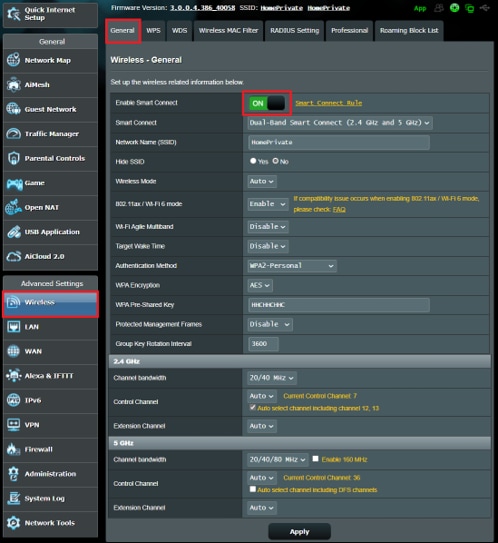
- Login to the Modem GUI
- Select Advanced Settings
- Select Wireless
- Select the General tab
- Select Enable Smart Connect
I'm having trouble enabling Band steering
If Band Steering has been enabled, but it doesn't appear to be working try the steps below:
- Turn your Modem on and off
- If the issue isn't resolved, continue to step 2
- Perform a factory reset
- If the issue isn't resolved, continue to step 3
- Perform an engineering reset
If you're still having trouble, message one of our experts via My Optus app.
How to configure Band Steering for the best experience
To get the best experience from Band Steering, adjust the below settings:
- Login to the modem GUI
- Select Network Tools
- Select Smart Connect Tools
- Enable Load Balance
- Adjust Bandwidth utilization to suit your needs