ASUS Gaming Modem | General Set up and Troubleshooting
Experiencing an issue with your ASUS Gaming Modem, or looking to configure a certain setting? Follow our steps below.
In this article we'll cover general setup and troubleshooting, topics include:
- Factory resetting your ASUS Gaming Modem
- Accessing your Modem GUI
- Performing an Engineering Rweset
- Modem not powering up or continually power cycling
- I can't Locate my WiFi network (LED off)
- I can't locate my WiFi network (LED on)
- Troubleshooting slow WiFi speeds
- Enabling WiFi 6 over the 2.4GHz network
How do I access the Modem GUI?
To manage your Modem settings, you'll need to access the modem GUI.
- Enter either asus.com or 192.168.0.1 in the address of your preferred browser
- In the user name and password field, enter the following details:
Username: optus Password: Use rhe default WiFi password labelled on the bottom of your modem
How do I factory reset my ASUS Gaming Modem (button)?
To factory reset your modem via the factory reset button, follow the steps below:
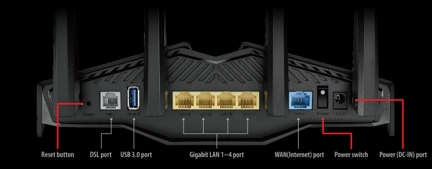
- Use a sharp object such as pin to press down on the reset button for a few seconds
- Wait for 3 minutes for all LED indicators to turn on
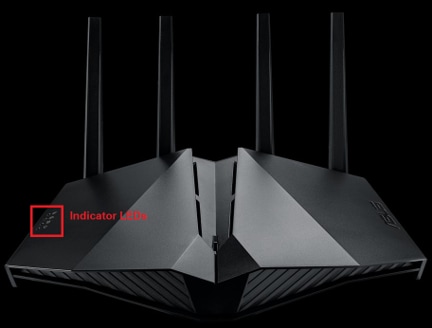
- release the Reset button when power LED begins to slowly flash
How do I factory reset my ASUS Gaming Modem (GUI)?
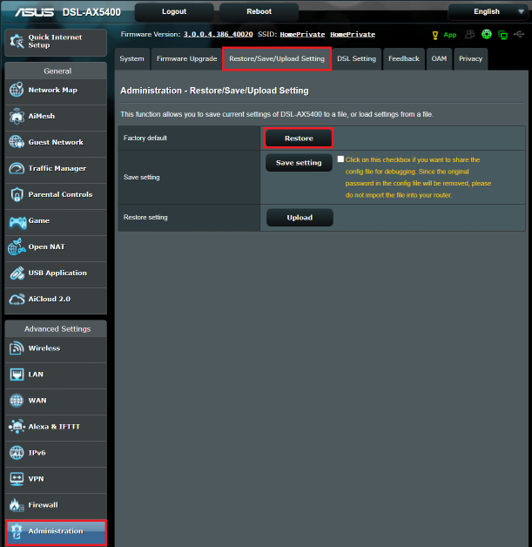
To factory reset your ASUS Gaming Modem, follow the steps below:
- Wait for 3 minutes for all LED indicators to turn on
- Connect a device to the Modem via Ethernet or WiFi
- Open your preferred browser
- Enter the URL asus.com to bring up the router GUI or enter 192.168.0.1
- Select Administration
- Select Restore
- Select Save
- Select Upload Setting
How do I perform an engineering reset?
To perform an engineering reset, follow the steps below:
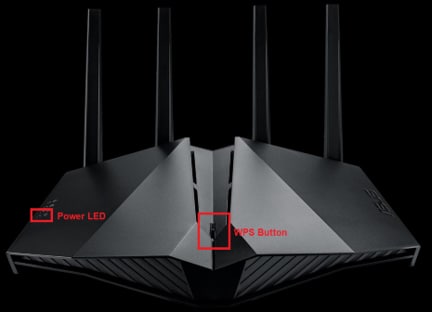
- Switch off your Asus Gaming router
- While off, press and hold the WPS button
- While pressing the WPS button, turn on the router via the on/off button
- Continue to press the WPS button until the Power LED turns off
- Turn the router off
- After a few seconds, turn the router back on
I can't add my console/device to Gear Accelerator
If you cannot add your console device to Gear Accelerator, try the steps below:
- Check if the bandwidth limiter is set to on
- If bandwidth limiter is on, switch it off
- If bandwidth limiter is off, continue to step 2
- Switch off parental controls (if applicable)
- Try re-adding your compatible device
- If you're still unable to add your device, try the following:
- Turn Gear Accelerator on/off
- Turn your Modem on/off
- Perform a factory reset
- Perform Engineering reset
If you're still having trouble, message us via My Optus app
My modem won't power up or it's continually power cycling
If your modem won't power up, ensure that you've checked the following:
- You're using the supplied power adapter
- The power cord is connected properly to the power adapter
- The power cord is connected properly to your power outlet and the modem
- Ensure power is turn on the router and power outlet
- Ensure no power boards are in use
If you're modem still won't switch on, message us via My Optus app
I cannot locate my WiFi network (LED is off)
If you cannot locate your WiFi network (SSID) and the LED lights are off, try the steps below:
- Do you want to keep your router settings?
- Yes, continue to step 2
- No, perform a factory reset
- Use an ethernet connected device and enter asus.com, you can also enter 192.168.01
- Enter your login and password details (the default login is Optus and the password can be found on the white label underneath your router
- Under Wireless Professional, ensure the radio option is set to yes
- Wait 3 minutes for WiFi to configure
I Cannot locate WiFi (LED on)
Confirm if all devices are impacted, if yes - perform an engineering reset. If no - Perform a network reset on the device in question. You'll need refer to your device manufactures website for instructions.
My WiFi is slow
There are a number of ways to improve the quality of your WiFi connection
- Placing your modem in an optimal position. Your modem should be placed in an open area, preferably in a higher location. Keep your modem away from metal, brick, tile and direct sunlight
- Select the optimal WiFi frequency band (5GHz, 2.4GHz or Band Steering)
- Follow our steps for enabling Band Steering
How to enable WiFi 6 over the 2.4GHz network
If your WiFi speed is slower than expected, enabling WiFi 6 over the 2.4GHz network may improve your WiFi speed. Follow the steps below:
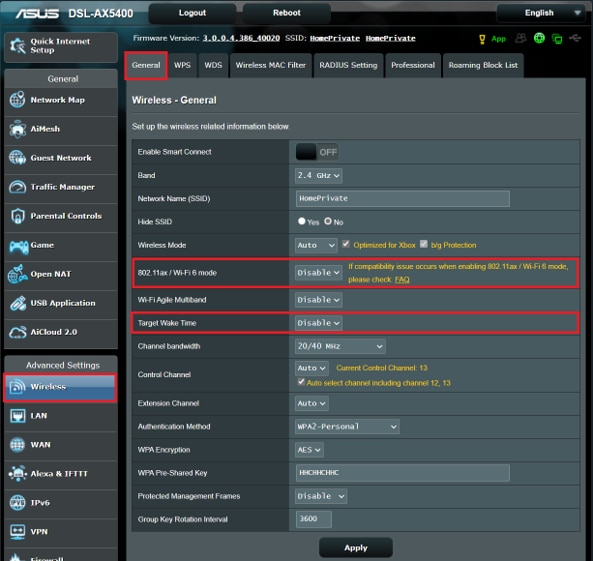
- Access the Modem GUI - you can enter asus.com, or enter 192.168.01 into the address bar of your preferred browser
- Under Advanced Settings, click Wireless
- Click the General tab
- Enable 802.11ax/WiFi 6 mode