Skip to Primary NavigationSkip to ContentSkip to Footer
  • Personal
  • Business
  • Enterprise
  • Deals
  1. Help & Support - Optus/
  2. Articles/
  3. Flubot malware scam warning

Flubot malware scam warning

This page provides information about the Flubot malware scam and what can help remove possible malware.

We've also included recommendations from Scamwatch if you've received a malware scam text or call, and information from McAfee for customers with Optus WiFi Secure.

It's important to try to prevent a malware infection on your device. Optus may even need to suspend outgoing texts from your service to help with this. You'll be notified if this happens to you.

Malware is malicious software that hackers use to gain unauthorised access to your computer or device. Malware is often delivered via a link or file in an email or text. It’s activated when you click the link or open the file.

The Flubot scam is named after the malicious software sent via text messages alerting people about false missed calls, voicemails or deliveries. The aim is to infect your phone with the malware if you tap on the link that comes with the message.

We’ve continued to receive reports of the Flubot text malware scam. The wording, the number from which it’s sent and the link may vary but Scamwatch has confirmed that clicking the link installs malware onto your device.

Scamwatch warning example

Scam warning example

Most anti-virus applications for Android will be able to remove the malware from your device. It's good practice to run anti malware apps frequently to ensure your device is safe.

To help remove malware from an Android device, see Uncover harmful apps on an Android device below. There is no method to uncover harmful apps on an Apple device.

Alternatively, you can perform a factory reset on your device.

Important: If you use a backup to get your saved files back, you may also restore the malware. It's recommended to use a backup from a date before receiving the malware message.

More information on malware, prevention and signs that your device has been compromised is available at Cyber.gov.au.

Uncover harmful apps on an Android device

To help uncover and remove harmful apps on your Android device, follow these steps:

  1. On your device, open the Google Play Store app
  2. Access you Google profile menu (e.g. click on your profile picture or tap the three-line icon)
  3. Select Play Protect
  4. Tap Scan. Your device will start checking for Android malware
  5. If your device uncovers harmful apps, it will provide an option for removal

If you have removed malware and still find texts are suspended, please contact us to resolve.
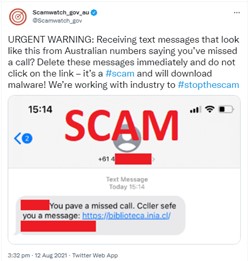
Scamwatch has provided the following recommendations:

  • Delete the text message
  • Don't call back the individual who sent the text as they are unlikely to be a scammer or criminal
  • If you have been a victim of this cybercrime, make a report to ReportCyber
  • You can also report to Scamwatch - https://www.scamwatch.gov.au/report-a-scam
  • If you have lost personal information to a scammer and are concerned, contact IDCARE at https://www.idcare.org/ or 1800 595 160
  • If you have installed the malware contact your bank, ensure your accounts are secure and contact an IT professional

McAfee has provided this information for customers that have Optus WiFi Secure:

  • Optus WiFi Secure protects customers within the home, when connected to their router
  • Optus WiFi Secure will scan and block known links / URLs to malicious sites for devices connected to the users' Home Network
  • In these circumstances, it works regardless of whether the link is sent via email, text or through a web browser
  • Therefore, this should include known sites which this Flubot malware directs users to

You may also be eligible for the McAfee® Safe Family App with Optus. For more on this, see What is the McAfee® Safe Family App?

For more advice, see How to stop unwelcome calls, scam calls & messages.

Related Articles

Reporting hoaxes, phishing or scams

How to stop unwelcome calls, scam calls & messages

Identify hoaxes, phishing or online scams

Popular articles

Orders, deliveries & returns

How to check network status & outages

Home Internet WiFi username & password help

Home Internet troubleshooting

Get in touch

  • Get My Optus app
  • Contact us
  • Find a store

Need more help?


Getting started


Billing and recharge


Troubleshooting


Device Guides


5G Mobile


Broadband & NBN


Manage my account


Optus Sport


Email


5G Home Broadband


Entertainment


Coverage and travel


Home phone


Business


Consumer advice


More from Optus

  • My Optus App
  • SubHub
  • Accessories
  • Student Hub

Customer Service

  • Contact Us
  • Help & Support
  • Store Locator
  • Payment Assistance Policy
  • Feedback & Complaints
  • Report a service outage

About Us

  • About Optus
  • Careers
  • Corporate Information
  • Media Releases
  • About Singtel
  • Accessibility

  • Blog
  • Connect With Us on facebook
  • Connect With Us on instagram
  • Connect With Us on tiktok
  • Connect With Us on linkedin
  • Connect With Us on twitter
  • Connect With Us on youtube

  • Critical Information Summaries
  • Standard Agreement
  • Privacy, Security & Safety

Connect with us

  • Blog
  • Connect With Us on facebook
  • Connect With Us on instagram
  • Connect With Us on tiktok
  • Connect With Us on linkedin
  • Connect With Us on twitter
  • Connect With Us on youtube
  • Critical Information Summaries
  • Standard Agreement
  • Privacy, Security & Safety
© 2026 Singtel Optus Pty Limited
Optus acknowledges the Traditional Custodians of the lands, waters and skies across Australia. We pay our respects to Elders past and present and honour the strength and continuity of the world's oldest living cultures.