Skip to Primary NavigationSkip to ContentSkip to Footer
  • Personal
  • Business
  • Enterprise
  • Deals
  1. Help & Support - Optus/
  2. Articles/
  3. ASUS Gaming Modem | Traffic Prioritisation Features

ASUS Gaming Modem | Traffic Prioritisation Features

The ASUS gaming modem gives you the ability to choose your preferred setting to optimise your gaming experience. In this article, we'll will give you an overview of the three traffic prioritisation features, in what scenario they're best suited for use and setup instructions.All you need to do is login to the modem GUI and follow the steps to configure you preferred traffic prioritisation setting. 

Users can prioritise any device on the network using the Gear Accelerator function in the router's online control panel.

This allows for the automatic prioritisation from all traffic from the devices such as consoles or PC's connected to your ASUS Modem.


Gear accelerator offers gamers who want a quick and easy way to maximize gaming experience. Setup is straight forward; simple follow the steps below. 

Gear Accelerator Setup


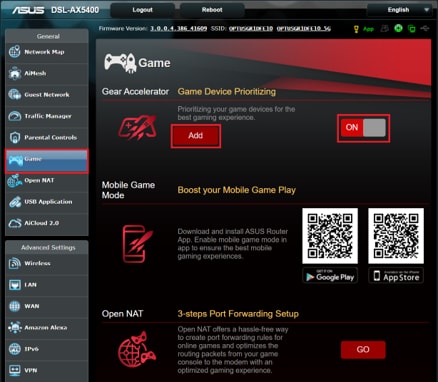
1. From the General tab, select Game

2. Click the OFF button to turn it ON.

3. Click the Add button to bring up the add device page.

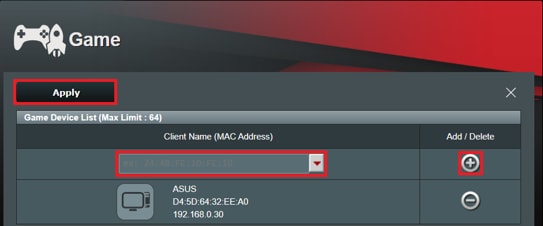
Gear accelerator add device


4. Choose previously connected device from the combo box or enter the MAC address of the device you wish to prioritise.

5. Click the + button to add this deice into the list.

6. Click the Apply button to save change.

Note: Gear Accelerator will be turned off automatically if Bandwidth Limiter is enabled and vice versa.

If used in combination with TQoS, the changes made to the game device list of Gear Accelerator will be synchronized to Traditional QoS, whether that is add or remove, replacing the existing configuration.

If these devices were added by Gear Accelerator, they will appear in Traditional QoS as top priority device without consideration of traffic type, port or data size.

For gamers that really know their stuff, configuring TQoS s allow gamers to set online gaming traffic as high priority, ensuring bandwidth on both wired and wireless connections for prioritised applications. Specific tasks and applications can be prioritised via manual user-defined parameters.


Selecting TQOS, sets online gaming and web surfing as the highest priority, ensuring bandwidth on both wired and wireless connections for prioritised applications.


Specific tasks and applications can be prioritised via manual user-defined rules. This may include bandwidth rules for selected:

- Devices

- Ports

- Protocol

- Packet size
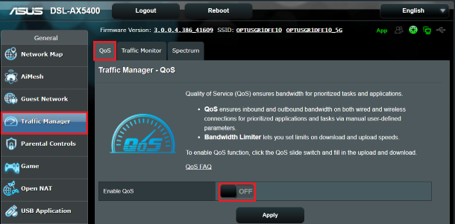
TqOS setup


            1. From the General tab, click Traffic Manager
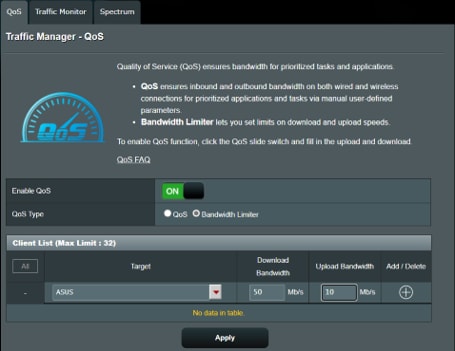
TQos2


2. Select QoS as QoS type (your modem will now restart)

3. Define upload and download bandwidth. By default settings are set to:

- Primary WAN = DSL WAN

- Secondary WAN = Ethernet WAN

As QoS will not work unless both upload and download are defined for both connections, simply fill in anything for the other connection that is not connected.
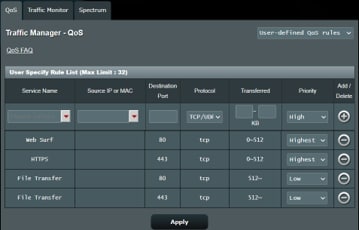
TQoS define rule


4. Under User-defined QoS rules, you'll find the default QoS rule. See below for must fill parameters:

- Service Name: Can be anything, for your own reference only. Not a Must Fill parameter

- Source IP or MAC: Fill only if you only want to apply this on a specific client. Rule applies to all client if not filled

- Destination Port: Fill only if you wish to apply restriction over traffic utilizing specific port for transmission. Rules apply to all ports if not filled

- Protocol: Defines the protocol which the restriction should be applied to

- Transferred: Fill only if you want to apply only when the transmission is within a specific size range. Rules apply to any size transmission if not filled

5. Click + to add this new rule
.

Note: When both Gear Accelerator and QoS are enabled at the same time, the changes made to the game device list of Gear Accelerator will be synchronized to Traditional QoS, whether that is add or remove, replacing the existing configuration.

If these devices were added by Gear Accelerator, they will appear in Traditional QoS as top priority device without consideration of traffic type, port or data size.
Bandwidth Limiter is an easy to configure setting and allows you to control maximum download and upload speeds of devices on your network.

Bandwidth Limiter cannot be used in combination with TQoS or Gear Accelerator. If Bandwidth limiter is enabled, TQoS and Gear Accelerator will be turned off automatically.


To configure Bandwidth Limiter follow the steps below:

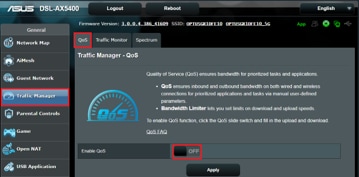
Bandwidth limiter setup


1. F
rom the General tab, click Traffic Management

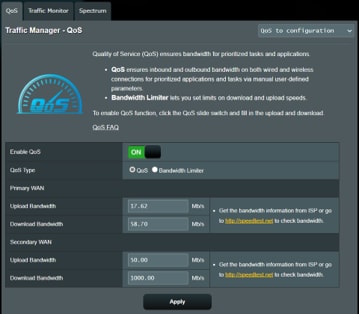
Bandwidth limiter 2

2.
Click ON then click Apply to enable QoS function group

3. Select QoS as Bandwidth Limiter to allow applying speed limit to specific device in the network

4. In the combo box, select the device, or manually fill in the MAC address of the target device, and the download and upload speed      limit

5. Click + to add this rule

6. Click Apply for the change to take effect

Related Articles

Your bill explained

How to change plans

How to view your Optus bill

How to unlock your mobile device from the Optus network

Home Internet WiFi username & password help

Popular articles

Orders, deliveries & returns

How to check network status & outages

Home Internet WiFi username & password help

Home Internet troubleshooting

Get in touch

  • Get My Optus app
  • Contact us
  • Find a store

Need more help?


Getting started


Billing and recharge


Troubleshooting


Device Guides


5G Mobile


Broadband & NBN


Manage my account


Optus Sport


Email


5G Home Broadband


Entertainment


Coverage and travel


Home phone


Business


Consumer advice


More from Optus

  • My Optus App
  • SubHub
  • Accessories
  • Student Hub

Customer Service

  • Contact Us
  • Help & Support
  • Store Locator
  • Payment Assistance Policy
  • Feedback & Complaints
  • Report a service outage

About Us

  • About Optus
  • Careers
  • Corporate Information
  • Media Releases
  • About Singtel
  • Accessibility

  • Blog
  • Connect With Us on facebook
  • Connect With Us on instagram
  • Connect With Us on tiktok
  • Connect With Us on linkedin
  • Connect With Us on twitter
  • Connect With Us on youtube

  • Critical Information Summaries
  • Standard Agreement
  • Privacy, Security & Safety

Connect with us

  • Blog
  • Connect With Us on facebook
  • Connect With Us on instagram
  • Connect With Us on tiktok
  • Connect With Us on linkedin
  • Connect With Us on twitter
  • Connect With Us on youtube
  • Critical Information Summaries
  • Standard Agreement
  • Privacy, Security & Safety
© 2026 Singtel Optus Pty Limited
Optus acknowledges the Traditional Custodians of the lands, waters and skies across Australia. We pay our respects to Elders past and present and honour the strength and continuity of the world's oldest living cultures.