WiFi calling support
WiFi Calling allows you to make and receive Calls, MMS and SMS over a WiFi network.
You can use this capability if you have a compatible WiFi Calling device, you're connected to a supported WiFi network and you don't have sufficient mobile network coverage to make a call.
How do I get WiFi calling?
To get WiFi Calling, eligible customers with compatible devices can simply follow the below 2 step process.
The first step to get WiFi Calling is to activate VoLTE (4G Voice Calls) on your service.
When VoLTE is applied the WiFi Calling feature will also be applied.
You can activate VoLTE in your device's settings, using the below instructions:
Apple iPhone
Once the Service Provider Settings have been updated follow the below steps to request 4G voice.
- Tap Settings icon on Home screen
- Tap Mobile menu item
- Tap Mobile Data Options menu item
- Tap Enable 4G menu item
- Select the Voice & Data option to enable VoLTE
Settings Menu - VoLTE off
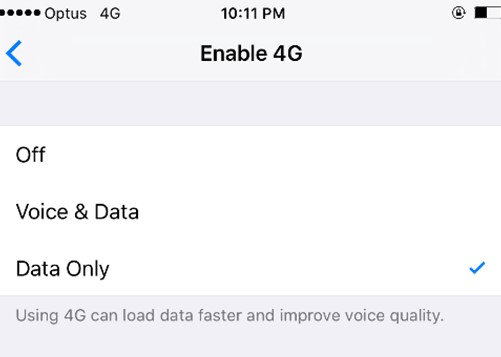
Settings Menu - VoLTE on

Samsung
Once the software is installed, go into settings to request the 4G voice service and follow the prompts.
- Open Apps icon
- Locate Settings Icon
- Select Connections
- Click Mobile Networks
- Select VoLTE to enable on the device
Compatible handsets with the latest software have WiFi Calling settings that are OFF by default so you must turn the setting ON to enable WiFi Calling.
The process for turning WiFi Calling settings ON differs slightly depending on your device.
Apple iPhone
Once the Service Provider Settings have been updated follow the below steps to request WiFi Calling.
- Tap Settings icon on Home screen
- Tap Mobile menu item
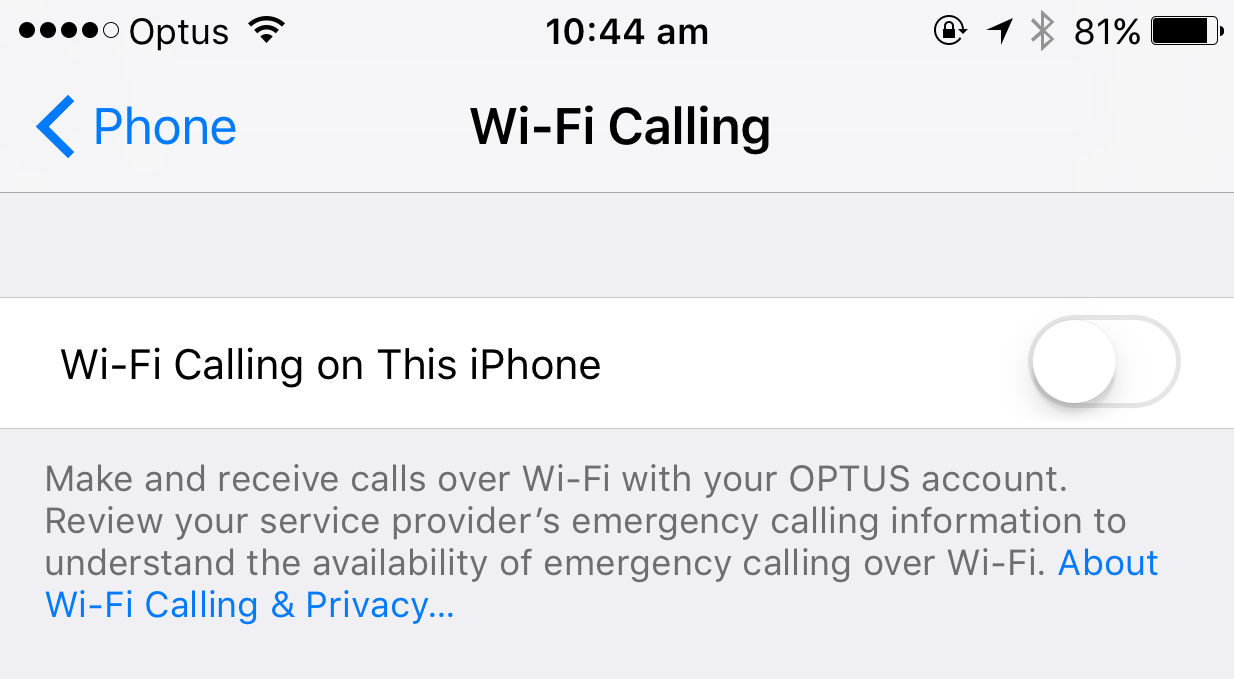
- Tap WiFi Calling
- switch the WiFi Calling on This iPhone slider to On
- You'll see a warning about location data and what your carrier collects. Tap Enable to turn on Wi-Fi Calling.
Samsung
Once you have installed the latest software, go into settings to turn WiFi Calling ON.
- Open Apps icon
- Locate Settings Icon
- Select Connections
- Click WiFi Calling
- Select ON to enable WiFi Calling
Note: If you only complete step 2 above (ie turn 'ON' WiFi Calling settings without turning 'ON' VoLTE settings) the following limitations will apply to your service.
- Without VoLTE turned ON, your call setup time may be delayed by around 1 second
- Without VoLTE turned ON, you will not be able to handover your calls from the WiFi network to the 4G mobile network
What devices are compatible with WiFi calling?
WiFi Calling is currently available on the devices listed below.
The following iPhone devices support WiFi Calling on postpaid plans. These devices, when running the iOS software version 10.3 (or later) also support emergency calls to Triple Zero over WiFi Calling.
- Apple iPhone 6 onwards
- Apple Watch 3 onwards
The following Samsung devices when purchased from Optus on a postpaid plan support WiFi Calling. These devices, noted by their 'Build number' also support emergency calls to Triple Zero over WiFi Calling:
- Samsung Galaxy S6 onwards
- Note 5 onwards
- Fold
- Z Flip
Note: Android devices must have the latest Optus firmware installed to use WiFi Calling. Please note that these devices have been specifically tested by us. Other Android devices not listed here or purchased through other carriers may be compatible for WiFi Calling however we cannot confirm.
The following Google Pixel devices when purchased from Optus on a postpaid plan support WiFi Calling:
- Google Pixel 3 onwards
Note: Android devices must have the latest Optus firmware installed to use WiFi Calling. Please note that these devices have been specifically tested by us. Other Android devices not listed here or purchased through other carriers may be compatible for WiFi Calling however we cannot confirm.
The following Oppo devices when purchased from Optus on a postpaid plan support WiFi Calling:
- Oppo Find X2 Lite
- Oppo Find X3 Pro
- Oppo Find X3 Lite
- Oppo R11s
- Oppo R15 Pro
- Oppo AX5s
- Oppo Reno Z (CPH1979)
- Oppo Reno 5G (CPH1921)
- Oppo Compass Pro
- Oppo A53s
- Oppo A54
Note: Android devices must have the latest Optus firmware installed to use WiFi Calling. Please note that these devices have been specifically tested by us. Other Android devices not listed here or purchased through other carriers may be compatible for WiFi Calling however we cannot confirm.
The following Android devices when purchased from Optus on a postpaid plan support WiFi Calling:
- LG G5
- HTC 10
- HTC U11
- Sony Xperia XZ Premium
- Huawei Vogue Dual SIM
- Huawei Elle Dual SIM
- Huawei P30 Lite Dual SIM
- Nokia 3310
- Razer Phone 2
- Bullitt S61
- Bullitt B35
- Bullitt S52
- realme C3 (RMX2020)
- realme C21 (RMX3201)
- Motorola Moto G8 Power Lite (XT2055-4)
- Optus X Delight
- Optus X Tap
Note: Android devices must have the latest Optus firmware installed to use WiFi Calling. Please note that these devices have been tested under the basis that they are purchased through us. Other android devices not listed here or purchased through other carriers may be compatible for WiFi Calling however we cannot confirm this.
Future Device Compatibility
Optus is working with our device vendors in order to enable additional devices to support WiFi Calling. We will update the list of compatible devices as soon as they become enabled.
FAQs
If you don't have Optus mobile coverage available but you are in range of a Fixed Broadband WiFi connection that you have access to, your mobile will automatically make calls and send messages via the WiFi connection.
WiFi Calling is currently available for Optus postpaid, Optus prepaid and Optus Business mobile customers who:
- Are using an Optus approved compatible device with the latest device firmware. See the list of compatible devices above.
- Have access to a WiFi connection that supports WiFi Calling.
The benefits include:
- WiFi Calling provides the ability to call or message when you don't have mobile coverage but you do have a WiFi connection. Instead of using your mobile network connection, you can use the WiFi network.
- There are no additional charges for WiFi Calling. Your calls and messages will be charged as per the rates in your existing mobile plan.
- It's simple to use, just connect your device to a WiFi network as you would today. Your compatible smartphone will automatically connect your calls via WiFi when there is insufficient mobile coverage.
- You can make and receive calls using your existing mobile number
- You don't need to use an app or other log-in to use WiFi Calling.
- All your messaging is integrated as normal on your phone.
To be eligible for WiFi Calling, you need to:
- Be an Optus postpaid or prepaid customer
- Be an Optus Business customer
- Request that VoLTE (ie 4G Voice Calls) and WiFi Calling is applied to your service.
- Have an Optus approved WiFi Calling compatible device
- Turn on your WiFi Calling settings on your device.
For Apple devices you will need to ensure you are running software version iOS 10.3 (or later) that supports WiFi Calling and your iPhone Service Provider settings are up to date (Version OPTUS 28.3).
Optus recommends you connect to a WiFi network while updating the software/carrier settings on your mobile phone.
For a step by step guide on how to check the software version on your phone see our Device Guides.
To update your iPhone software.
- Tap settings
- Tap General
- Tap Software Update. If a new software version is available, it's displayed.Follow the instructions on the screen to update the software on your mobile phone.
To check whether you're running the latest Service Provider settings.
- Tap Settings.
- Tap General
- Tap About. Under Service Provider, Optus 28.3 should display.
You'll need to make sure your Samsung device is running the latest software build that supports WiFi Calling.
- Samsung Galaxy Fold2 5G (SM-F916B)
- Samsung Galaxy Fold (SM-F900F)
- Samsung Galaxy Z Flip (SM-F700F)
- Samsung Galaxy Z Flip 5G (SM-F707B)
- Samsung Galaxy Note10+ (SM-N975F)
- Samsung Galaxy Note10+5G (SM-N976B)
- Samsung Galaxy S21 5G (SM-G991B)
- Samsung Galaxy S21+ 5G (SM-G996B)
- Samsung Galaxy S21 Ultra 5G (SM-G998B)
- Samsung Galaxy S20 4G (SM-G980F)
- Samsung Galaxy S20 5G (SM-G981B)
- Samsung Galaxy S20+ 5G (SM-G986B)
- Samsung Galaxy S20 Ultra 5G (SM-G988B)
- Samsung Galaxy S20 FE (SM-G780F)
- Samsung Galaxy S20 FE 5G (SM-G781B)
- Samsung Galaxy Note 20 5G (SM-N981B)
- Samsung Galaxy Note 20 Ultra 5G (SM-N986B)
- Samsung Galaxy S10 (Emergency Calls Build Number PPR1.180610.011.G973FXXU1ASAT)
- Samsung Galaxy S10 Plus (Emergency Calls Build Number PPR1.180610.011.G975FXXU1ASAT)
- Samsung Galaxy S10e (Emergency Calls Build Number PPR1.180610.011.G970FXXU1ASAT)
- Samsung Galaxy Note 9 (Emergency Calls Build Number M1AJQ.N960FXXU1ARG7)
- Samsung Galaxy S9 (Emergency Calls Build Number R16NW.G960FXXU1ARAN)
- Samsung Galaxy S9 Plus (Emergency Calls Build Number R16NW.G965FXXU1ARAN)
- Samsung Galaxy Note 8 (Emergency Calls Build Number NMF26X.N950FXXU1AQH4)
- Samsung Galaxy S8 (Emergency Calls Build Number NRD90M.G950FXXU1AQC9)
- Samsung Galaxy S8 Plus (Emergency Calls Build Number NRD90M.G955FXXU1AQC9)
- Samsung Galaxy S7 (Emergency Calls Build Number NRD90M.G930FXXU1DQBH)
- Samsung Galaxy S7 Edge (Emergency Calls Build Number NRD90M.G935FXXU1DQBH)
- Samsung Galaxy S6 (Emergency Calls Build Number NRD90M.G920IDVU3FQH3)
- Samsung Galaxy S6 Edge (Emergency Calls Build Number NRD90M.G925IDVU3FQH3)
- Samsung Galaxy S6 Edge Plus (Emergency Calls Build Number NRD90M.G928IDVU3CQF3)
- Samsung Galaxy Note 5 (Emergency Calls Build Number NRD90M.N920IDVU3CQF3)
- Samsung Galaxy J5 Pro (SM-J530Y)
- Samsung Galaxy Star
- Samsung Galaxy Star 2
- Samsung Galaxy J2 Pro (SM-J250G)
- Samsung Galaxy A8 (SM-A530F)
- Samsung Galaxy Tab A 10.1 (SM-T515)
- Samsung Galaxy Tab A 10.5 (SM-T595)
- Samsung Galaxy Tab Se 10.5 (SM-T725)
- Samsung Galaxy Tab S7 ((SM-T875F)
- Samsung Galaxy Tab S7+ 5G (SM-T976B)
- Samsung Galaxy Tab A7 (SM-T505)
- Samsung Galaxy Tab Active3 (SM-T575)
- Samsung Galaxy A30 (SM-A305YN)
- Samsung Galaxy A50 (SM-A505YN)
- Samsung Galaxy A51 (SM-A515F)
- Samsung Galaxy A52 5G (SM-A526B)
- Samsung Galaxy A90 (SM-A908B)
Optus recommends you connect to a WiFi network while updating the software on your mobile phone.
To update your Samsung software:
- Find the Settings Application and open it up.
- Scroll down to the line About Device and select.
- Select Software Update.
- Press Update Now.
If you need help updating your Samsung software, check out our Device Guides.
Optus recommends you connect to a WiFi network while updating the software on your mobile phone.
To update your Google software:
- Find the Settings Applicationand open it up.
- Scroll down to the line Systemand select.
- Select Advanced.
- Then tap System update.
If you need help updating your Google software, check out our Device Guides.
Optus recommends you connect to a WiFi network while updating the software on your mobile phone.
To update your Oppo software:
- Find the Settings Application and open it up.
- Scroll down and tap Software Update and follow the instructions.
If you need help updating your Oppo software, check out our Device Guides.
Optus recommends you connect to a WiFi network while updating the software on your mobile phone.
The exact steps to update your device's software will differ slightly, but generally you will need to:
- Find the Settings Application and open it up.
- Scroll down to the line About Device and select.
- Select Software Update.
If you need help updating your Android device's software, check out our Device Guides or contact the phone manufacturer.
Yes, emergency triple zero calls are supported over WiFi Calling if there is no mobile network coverage available to make the call.
Your mobile device is defaulted to use the Optus mobile network in the first instance when making emergency triple zero calls. If Optus mobile coverage is insufficient to make the call your device will then automatically search for other mobile carrier networks to try to make the call. Making emergency triple zero calls over a mobile network is automatically preferred as this provides more of your location details to your chosen emergency service.
If no mobile networks can be found to carry the call your device will then attempt to make the call using WiFi Calling if you have WiFi coverage and are using a WiFi Calling compatible device with the latest software.
Please be advised that currently there are some limitations when making emergency triple zero calls using WiFi calling:
- Customers need to have a compatible device with the latest software build that supports emergency triple zero calling over WiFi. Please see the list of compatible devices on this page. Don't forget to download the Emergency+ App - a free app developed by the government that uses GPS functionality to help Triple Zero callers provide critical location details to emergency services.
- When making emergency triple zero calls using WiFi Calling, your location information may not be automatically provided to emergency services. Emergency services will ask for your location when they answer your 000 call.
The WiFi Calling service will not be able to receive National Emergency Warning System (NEWS) SMS warnings.
I have an Optus WiFi calling compatible device. What do I need to do to make emergency calls?
To make Triple Zero (000) emergency calls over WiFi Calling, you'll need to update your device with the latest software when available.
Once the software is downloaded, recheck your settings to ensure Wi Fi Calling and 4G Voice are switched on.
Please see the list of compatible devices in the FAQ below. These devices support WiFi Calling and calls to triple zero where indicated.
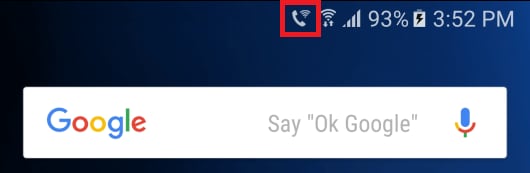
When you're compatible device is connected to WiFi, you will be able to see an icon indicating this on the screen next to the signal bar. Different devices show different icons to indicate when connected to WiFi:
Apple iPhone
Optus Wi-Fi Call
If you don't have mobile coverage and are connected to WiFi Calling, you will see Optus WiFi Call on your home screen.

Samsung
WiFi Calling Icon
If you don't have mobile coverage and are connected to WiFi Calling, you will see the WiFi Calling Icon on your home screen.
No, making and receiving calls and messages over WiFi Calling is exactly the same as when using the mobile network.
Furthermore, your supplementary services such as Voicemail, Call Forwarding and Caller ID all work in the same way that they do today. There is nothing new that you need to do.
The majority of Optus approved VoLTE and WiFI Calling handsets allow you to change your supplementary services (e.g. Call Forwarding to Voicemail or other numbers) regardless of the access method your phone is connected to (I.e. 3G, 4G, WiFi Calling).
However the following Samsung models require access to 3G coverage to make supplementary service changes via the handset:
- Samsung Galaxy S6
- Samsung Galaxy S6 Edge
- Samsung Galaxy S6 Edge Plus
- Samsung Galaxy Note 5
When in 3G coverage, your device will automatically use 3G to make any supplementary service changes you initiate. If you are not in an area that has 3G coverage (i.e. connected to 4G or WiFi with no underlying 3G coverage) you will not be able to make supplementary service changes via you handset. In these instances Optus recommends making Supplementary service changes via the My Optus App.
To use WiFi Calling you will need to connect to a private or public WiFi connection that you have access to.
Note: Some WiFi connections may not support WiFi Calling.
Your WiFi Calling compatible device is configured to make calls using the Optus mobile 3G or 4G networks in the first instance. So where there is mobile coverage your phone will always make the call over the mobile network.
The device will detect if there is insufficient mobile coverage to make a call and will then switch to WiFi Calling if needed.
No, WiFi Calling is not available when roaming overseas.
Your device will automatically revert to 3G calls or VoLTE calls on 4G/5G if this is available with the international carrier you’re roaming on. Standard international roaming rates apply.
Yes, WiFi Calling uses the same SIM based authentication that is used when making calls over the Optus mobile network.
Encryption technology is also used to setup a connection between the handset and the mobile network which ensure that calls and messages are sent securely.
Calls will handover seamlessly when moving between a WiFi hotspot and 4G VoLTE enabled mobile network coverage. Calls will drop when moving between a WiFi hotspot and 3G mobile network coverage.
The following call handover scenarios ARE supported:
- WiFi call handing over to VoLTE enabled 4G coverage(and vice versa)
- VoLTE enabled 4G call handing over to 3G coverage
The following call handover scenarios ARE NOT supported:
- WiFi call handing over to 3G coverage(and vice versa)
Yes, to turn WiFi Calling 'OFF' just deselect the WiFi calling option in settings on your device.
See instructions under How do I get WiFi calling?
Prepaid services are currently not able to be provided with VoLTE or WiFi Calling.
Optus is progressively rolling out VoLTE and WiFi Calling across our customer base.
Prepaid Customers - MMS over WiFi
Optus recommends that Prepaid customers turn their WiFI Calling setting to OFF.
However if you do turn your WiFi Calling setting to ON while you are in Aeroplane mode you will be able to send and receive MMS over WiFi. Optus is currently looking at removing this feature until full WiFi Calling capability becomes available to Prepaid services.
If you do send MMS over WiFi using your Prepaid service, you will be charged as normal based on your Prepaid rate plan.
Yes, WiFi Calling capability includes sending and receiving SMS and MMS.
WiFi Talk was an Optus App that customers could use to call and SMS over a WiFi connection when they didn't have mobile coverage. Please note this app is no longer available to download and/or use.
WiFi Calling is a new capability for compatible devices which allow you to call and message (SMS and MMS) when you don't have mobile coverage but do have a WiFi connection. You can access this feature seamlessly without having to use an App, in fact you can use the phone as you normally would and your device will automatically switch to Wi-Fi if there is insufficient mobile coverage. Additionally, you can handover calls between the WiFi network and VoLTE enabled mobile network if you are on the move.
WiFi Talk was an Optus App that customers could use to call and SMS over a WiFi connection when they didn't have mobile coverage. This app has since been discontinued and will no longer work as the functionality of WiFi Calling being built into handsets has superseded the need for the WiFi Talk app.
Yes, your service settings can be changed while you are connected to WiFi.
Yes, your VAS settings can be changed while you are connected to WiFi.
There are no additional charges for using the WiFi Calling feature.
Calls, SMS and MMS over WiFi Calling will be charged in exactly the same way as today based on your monthly voice plan.
When making a call over WiFi, mobile data is used to setup the call, however this data usage is unmetered and does not count towards the customer's mobile data usage allowance. The customer is not charged for this mobile data.
Yes, data is consumed on the WiFi network that you are connected to. If you are connected to an Optus fixed line WiFi network this data usage will be zero rated (not charged).
Data charges will apply as normal when the WiFi connection being used is provided by another internet service provider.
Voice Calls use approximately 3.8 MB of data for a 5 minute call, but this will vary based on the situation.
Financial barring will restrict all outgoing calls but will still allow incoming calls over 3G.
See below summary of financial bar restrictions:
- Outgoing calls - no outgoing voice call allowed over 3G, VoLTE or WiFi
- Incoming calls - incoming voice calls allowed over 3G only (ie not allowed over VoLTE or WiFi)
Calls - In some instances the location of the user may be unknown to Optus eg Calls diverted or forwarded to other numbers. In these instances the time that the call originated will be defaulted to Australian Eastern Standard Time. The timestamp on your bill may therefore not match the exact time that you made your call.
SMS - As the location of the user is unknown when sending SMS over WiFi, SMS records on your bill will be assigned a default time value:
- NSW time will be shown for SMS sent from NSW and QLD.
- VIC time will be shown for SMS sent from VIC, SA, WA & NT
Note: The delivery time shown on your handset will be the correct time.
If you can't make or receive WiFi calls, it may be due to one of the following reasons:
- VoLTE and WiFi Calling are not enabled by Optus
- You have not installed the latest software for your device.
- The WiFi Calling settings on your device are turned off. See instructions on how to turn on WiFi Calling settings above.
- You are not connected to a WiFi network. Check that you can browse the web from your device using WiFi to see whether you are connected.
In general, you will be able to use WiFi Calling when you have a compatible device and a WiFi Connection.
However there are a number of instances where the WiFi Calling capability may not be supported on the WiFi network you are connected to, such as:
- Some Internet Service Provider's may block WiFi Calling
- Enterprise and Public WiFi connections may not have the configuration required to allow WiFi Calling.
- Some WiFi networks may be setup with specific firewall settings or configuration that block WiFi Calling.
- Roaming is not supported.
Most WiFi routers that you have access to will allow you to use WiFi Calling.
To support WiFi Calling your modem/router will need to have:
- IP-SEC pass-through feature (enabled) and;
- Certificate Fragmentation support
Yes, in general the service will work via a Mobile WiFi Hotspot.
Note: However if you are using an Optus WiFi Hotspot, this means that you have mobile network coverage so your device will choose to make calls over the mobile network in the first instance unless you are in Aeroplane mode.
No, WiFi Calling is not supported over a VPN.
WiFi Calling requires a strong and reliable WiFi connection for the best possible call quality. If you are experiencing poor or inconsistent call quality when making calls over WiFi, check that you have a strong WiFi signal. If you need to, move to a location closer to the router with better signal.
Also, the number of devices connected to a WiFi network and the type of activity (e.g. streaming video) on a network can affect call quality. If the WiFi network you are using has many users, such as a public WiFi hotspot or a house with many users connected, this could reduce call quality even when the network signal is strong.
WiFi calls and messaging should be available on most broadband services.
WiFi Calling generally uses around 100-120kbps.
The Fair Go policy applies to your use of WiFi Calling.
WiFi Calling will use data on the WiFi Connection you are connected to. If the WiFi Connection is an Optus Fixed connection, this data will be zero rated and will not be charged.
You will be charged your usual mobile plan rates for making calls or sending message over WiFi Calling.
To use WiFi Calling, you will need to have a valid Optus mobile phone number, a compatible device and access to a WiFi connection.
Some public and corporate WiFi connections may have specific firewalls and settings that might mean WiFi Calling won't work. We cannot guarantee each specific WiFi connection will allow access to the WiFi Calling capability.
Emergency calls are supported via WiFi Calling if there is no mobile network available however we recommend that you use your normal phone service in an emergency to provide a more accurate location to the emergency services.
You can switch WiFi Calling OFF on your handset via the settings/options menu.