Skip to Primary NavigationSkip to ContentSkip to Footer
  • Personal
  • Business
  • Enterprise
  • Deals
  1. Help & Support - Optus/
  2. Articles/
  3. Troubleshoot Fetch audio issues

Troubleshoot Fetch audio issues

If your Fetch TV has no audio, these troubleshooting steps may help resolve the problem.

Before you start, make sure your Fetch box and TV are connected properly. Refer to the setup guide for your Fetch box if you need assistance.
  1. Use your TV remote to:

    • Try turning the volume up

    • Toggle from mute to unmute

  2. Use your Fetch remote to:

    • Try turning the volume up

    • Toggle from mute to unmute

Back to Top

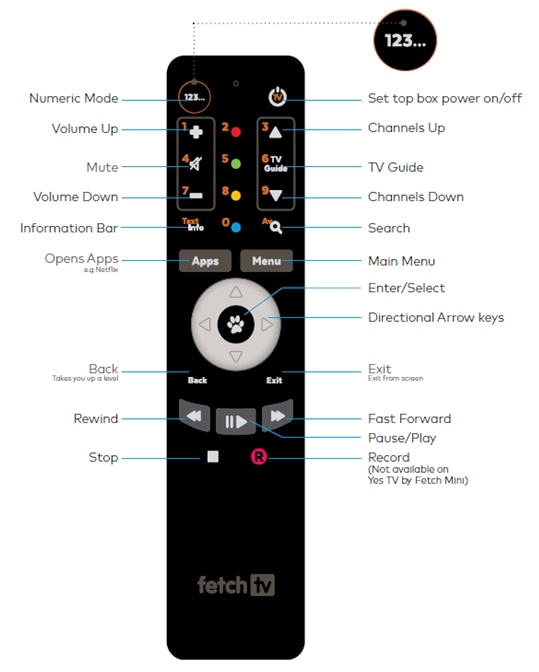
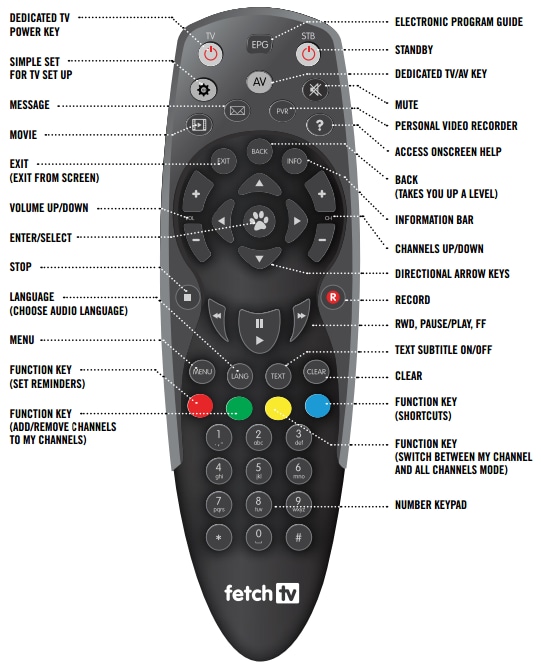
Select the type of Fetch remote you have. If you are not sure which remote you have, click here to see images.

    30da58a0-3c88-49ac-b569-4ef76bd4bf52.png
    529db543-f86e-4ad5-8f54-cd16383b3337.png
    b67f1f6b-c73d-46a0-9f47-f237b95b4464.png
    6e834225-8d76-41b7-a5da-6415faad37e4.png

      Watch the TV and STB (Set Top Box) buttons on your Fetch remote while pressing the volume up or down key.

      What happens?


        Your remote is working correctly. Proceed to the next step.
        This means your Fetch remote is controlling the TV volume instead of the Fetch box volume. To set your remote to change the Fetch box volume instead of the TV volume:
        1. Ensure your TV volume is set at a normal level and Mute is off

        2. Hold down the Paw and Volume Down buttons for 4 seconds until the TV button flashes once and then flashes four times

        3. Toggle the mute button to confirm the mute setting is off

        4. Use the volume buttons to increase the volume

        Tip: To switch your remote back to controlling the TV volume, hold down the Paw and Volume Up buttons for 4 seconds until the TV button flashes once and then flashes two times. View the Fetch remote instructions on the Fetch website to learn more about using your remote.

        If the audio problems persist, proceed to the next step.

        Does your Fetch box respond if you press any other buttons on the remote?

            Your Fetch remote may be controlling the TV volume instead of the Fetch box volume. To set your remote to change the set top box volume instead of the TV volume:
            1. Ensure your TV volume is set at a normal level and Mute is off

            2. Hold down the Paw and Volume Down buttons for 4 seconds until the TV button flashes once and then flashes four times

            3. Toggle the Mute button to confirm the mute setting is off

            4. Use the volume buttons to increase the volume

            Tip: To switch your remote back to controlling the TV volume, hold down the Paw and Volume Up buttons for 4 seconds until the TV button flashes once and then flashes two times. View the Fetch remote instructions on the Fetch website to learn more about using your remote.

            If the audio problems persist, proceed to the next step.

            There may be a problem with your remote. Try the following:
            • Check that you are using the remote within 6 metres of the Fetch box
            • Check that there is a clear line of sight to the box. Remove all obstructions (even glass or plastic) and make sure the remote is pointed directly at the box
            • Try different batteries

            If the problem persists, contact us and we’ll help you out. If you're not with Optus for your Fetch TV service, please contact your service provider for further assistance.

            Call us on 13 13 44

            Don't forget, if you have an iPhone, iPad or an Android device and a Wi-Fi network, you can use the Fetch Mobi app as a remote control until we work out the problem with your Fetch remote. Learn more about the Fetch Mobi app.

            Does your Fetch box respond if you press any other buttons on the remote?

              Your remote may be set to control the TV volume instead of the Fetch box volume. To set the remote to control the Fetch box volume:

              1. Ensure your TV volume is set at a normal level and mute is off

              2. Hold down the Paw and Volume Down buttons for 4 seconds until the remote flashes twice

              3. Toggle the mute button to confirm the mute setting is off

              4. Use the volume buttons to increase the volume

              Tip: To switch your remote back to controlling the TV volume, hold down the Paw and the Volume Up button until the TV button flashes once. View the Fetch remote instructions on the Fetch website to learn more about using your remote.

              If the audio problems persist, proceed to the next step.

              There may be a problem with your remote. Try the following:
              • Check that you are using the remote within 6 metres of the Fetch box
              • Check that there is a clear line of sight to the box. Remove all obstructions (even glass or plastic) and make sure the remote is pointed directly at the box
              • Try different batteries

              If the problem persists, contact us and we’ll help you out. If you're not with Optus for your Fetch TV service, please contact your service provider for further assistance.

              Call us on 13 13 44

              Don't forget, if you have an iPhone, iPad or an Android device and a WiFi network, you can use the Fetch Mobi app as a remote control until we work out the problem with your Fetch remote. Learn more about the Fetch Mobi app.

              Back to Top

              If your Fetch box or TV is connected to any other devices (such as an audio receiver), check that the device:

              • Is switched on
              • Has the correct source/input selected?
              • Is not on mute
              • Has not had the volume set too low?
              • Is connected properly

              If the issue persists, disconnect the additional device so that the Fetch box is the only device directly connected to your TV. If audio returns, you have identified that the additional device is the source of the audio issue. Refer to the device’s manual or support site for assistance.

              If the problem is not caused by any additional devices, proceed to the next step.

              Back to Top

              1. Using your Fetch remote, select Menu > Manage > Settings > Audio-Visual

              2. Make sure Audio Option is set to Stereo

              3. Check if the audio problem persists

              If this hasn’t fixed the issue, proceed to the next step.

              Back to Top

              To reboot your Fetch box, turn the power to the box off for 30 seconds, then turn it back on.

              If the problems persist, proceed to the next step.

              Back to Top

              1. Try a different input port
                If your TV has additional input ports (such as a spare HDMI or AV port), try connecting your set top box via a different port. You may need to select the new input on your TV by pressing the Input/Source on your TV or Fetch remote control. If this resolves the problem, you have identified an issue with the ports on your TV. Consult your TV user guide or manufacturer’s support site for further assistance.

              2. Try different cables
                If you have alternative cables, use them to connect your Fetch box to your TV. Consult your user guide if you need assistance changing the cables. If this resolves the problem, you have identified there may be a problem with the original cables.

              If the problem persists or you don’t have spare ports / cables, proceed to the next step.

              Back to Top

              If you have another TV, try connecting the Fetch box to it.

              If this resolves the problem, you have identified there may be a problem with your TV. Consult your TV user guide or manufacturer’s support site for further assistance.

              If the problem persists or you don't have a spare TV, contact us and we'll help you out. If you're not with Optus for your Fetch TV service, please contact your service provider for further assistance.

              Call us on 13 13 44


              Back to Top

              Related Articles

              How to pay your bill

              How to change plans

              How to request more time to pay your bill

              Change ownership of your service

              A guide to eSIM

              Popular articles

              Orders, deliveries & returns

              How to check network status & outages

              Home Internet WiFi username & password help

              Home Internet troubleshooting

              Get in touch

              • Get My Optus app
              • Contact us
              • Find a store

              Need more help?


              Getting started


              Billing and recharge


              Troubleshooting


              Device Guides


              5G Mobile


              Broadband & NBN


              Manage my account


              Optus Sport


              Email


              5G Home Broadband


              Entertainment


              Coverage and travel


              Home phone


              Business


              Consumer advice


              More from Optus

              • My Optus App
              • SubHub
              • Accessories
              • Student Hub

              Customer Service

              • Contact Us
              • Help & Support
              • Store Locator
              • Payment Assistance Policy
              • Feedback & Complaints
              • Report a service outage

              About Us

              • About Optus
              • Careers
              • Corporate Information
              • Media Releases
              • About Singtel
              • Accessibility

              • Blog
              • Connect With Us on facebook
              • Connect With Us on instagram
              • Connect With Us on tiktok
              • Connect With Us on linkedin
              • Connect With Us on twitter
              • Connect With Us on youtube

              • Critical Information Summaries
              • Standard Agreement
              • Privacy, Security & Safety

              Connect with us

              • Blog
              • Connect With Us on facebook
              • Connect With Us on instagram
              • Connect With Us on tiktok
              • Connect With Us on linkedin
              • Connect With Us on twitter
              • Connect With Us on youtube
              • Critical Information Summaries
              • Standard Agreement
              • Privacy, Security & Safety
              © 2026 Singtel Optus Pty Limited
              Optus acknowledges the Traditional Custodians of the lands, waters and skies across Australia. We pay our respects to Elders past and present and honour the strength and continuity of the world's oldest living cultures.