Skip to Primary NavigationSkip to ContentSkip to Footer
  • Personal
  • Business
  • Enterprise
  • Deals
  1. Help & Support - Optus/
  2. Articles/
  3. Internet stability/modem restarts: Power supply adapter troubleshooting

Internet stability/modem restarts: Power supply adapter troubleshooting

If you're using an Optus Sagemcom F@st 5366 TN, Ultra WiFi Modem (Gen 1) or Ultra WiFi Modem (Gen 2) to connect to your Optus NBN service, you may be experiencing some stability issues, including your modem restarting intermittently. These issues may be caused by the power supply adapter that connects the modem to your power outlet.

Impacted customers will have been sent a replacement power supply adapter to use. To ensure you're getting the best performance from your modem, we recommend replacing your current power supply adapter with the new power supply adapter. 

Once you receive the replacement power supply adapter, follow the instructions below to get connected:

Unplug the current power suppl adapter from the power outlet and the port on the bottom of your modem labelled DC-IN.

Note: Whilst completing these steps your internet service will be interrupted until step 3 is completed.

Optus Sagemcom F@st 5366 TN

Optus Sagemcom F@st 5366 TN

Ultra WiFi Modem (Gen 1)

Ultra WiFi Modem (Gen 1)

Ultra WiFi Modem (Gen 2)

Ultra WiFi Modem (Gen 2)

Wait at least 30 seconds, then connect your new power supply adapter to the same port on the bottom of your modem labelled DC-IN.

Plug the other end into your power outlet.

Power on and test your modem

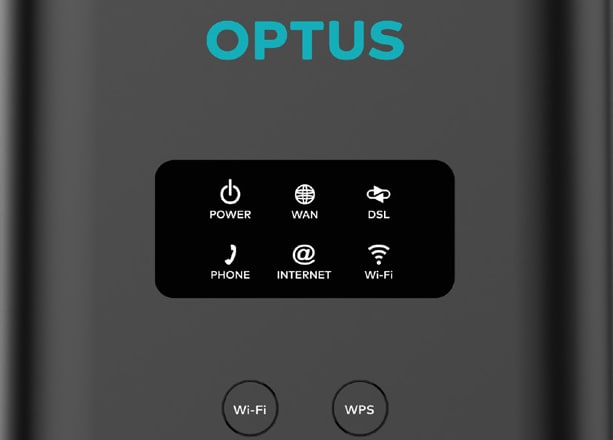
Switch the power on. Once the power and internet lights on the front of your modem are lit, you're connected.

Optus Sagemcom F@st 5366 TN

Image of the Sagemcom F@st 5366 TN modem

Ultra WiFi Modem (Gen 1)

Ultra WiFi Modem (Gen 1)

Ultra WiFi Modem (Gen 2)

Ultra WiFi Modem (Gen 2)

Once your internet is up and running, please dispose of your old power supply adapter responsibly.

Optus retail stores can also assist recycling the old power supply.

A person dropping an old modem into an Optus recycle bin

If you continue to experience any issues once you are using your new power supply adapter, you can visit online for more information at optus.com.au/psu or call us on 133 937.

  • Check out more nbn troubleshooting articles here
  • You can also visit check for outages in your area
  • To test your broadband speed, download My Optus app
  • Visit our Sagemcom F@ST 5366 TN modem guide
  • Visit our Sagemcom F@ST 5366 LTE modem guide
  • Visit our  Ultra WiFi Modem (Gen 1) modem guide
  • Visit our Ultra WiFi Modem (Gen 2) modem guide
     
Related Articles

Your bill explained

How to change plans

How to request more time to pay your bill

How to unlock your mobile device from the Optus network

Home Internet WiFi username & password help

Popular articles

Orders, deliveries & returns

How to check network status & outages

Home Internet WiFi username & password help

Home Internet troubleshooting

Get in touch

  • Get My Optus app
  • Contact us
  • Find a store

Need more help?


Getting started


Billing and recharge


Troubleshooting


Device Guides


5G Mobile


Broadband & NBN


Manage my account


Optus Sport


Email


5G Home Broadband


Entertainment


Coverage and travel


Home phone


Business


Consumer advice


More from Optus

  • My Optus App
  • SubHub
  • Accessories
  • Student Hub

Customer Service

  • Contact Us
  • Help & Support
  • Store Locator
  • Payment Assistance Policy
  • Feedback & Complaints
  • Report a service outage

About Us

  • About Optus
  • Careers
  • Corporate Information
  • Media Releases
  • About Singtel
  • Accessibility

  • Blog
  • Connect With Us on facebook
  • Connect With Us on instagram
  • Connect With Us on tiktok
  • Connect With Us on linkedin
  • Connect With Us on twitter
  • Connect With Us on youtube

  • Critical Information Summaries
  • Standard Agreement
  • Privacy, Security & Safety

Connect with us

  • Blog
  • Connect With Us on facebook
  • Connect With Us on instagram
  • Connect With Us on tiktok
  • Connect With Us on linkedin
  • Connect With Us on twitter
  • Connect With Us on youtube
  • Critical Information Summaries
  • Standard Agreement
  • Privacy, Security & Safety
© 2026 Singtel Optus Pty Limited
Optus acknowledges the Traditional Custodians of the lands, waters and skies across Australia. We pay our respects to Elders past and present and honour the strength and continuity of the world's oldest living cultures.