Why the Samsung Galaxy S26 Ultra Privacy Display feature is a game changer
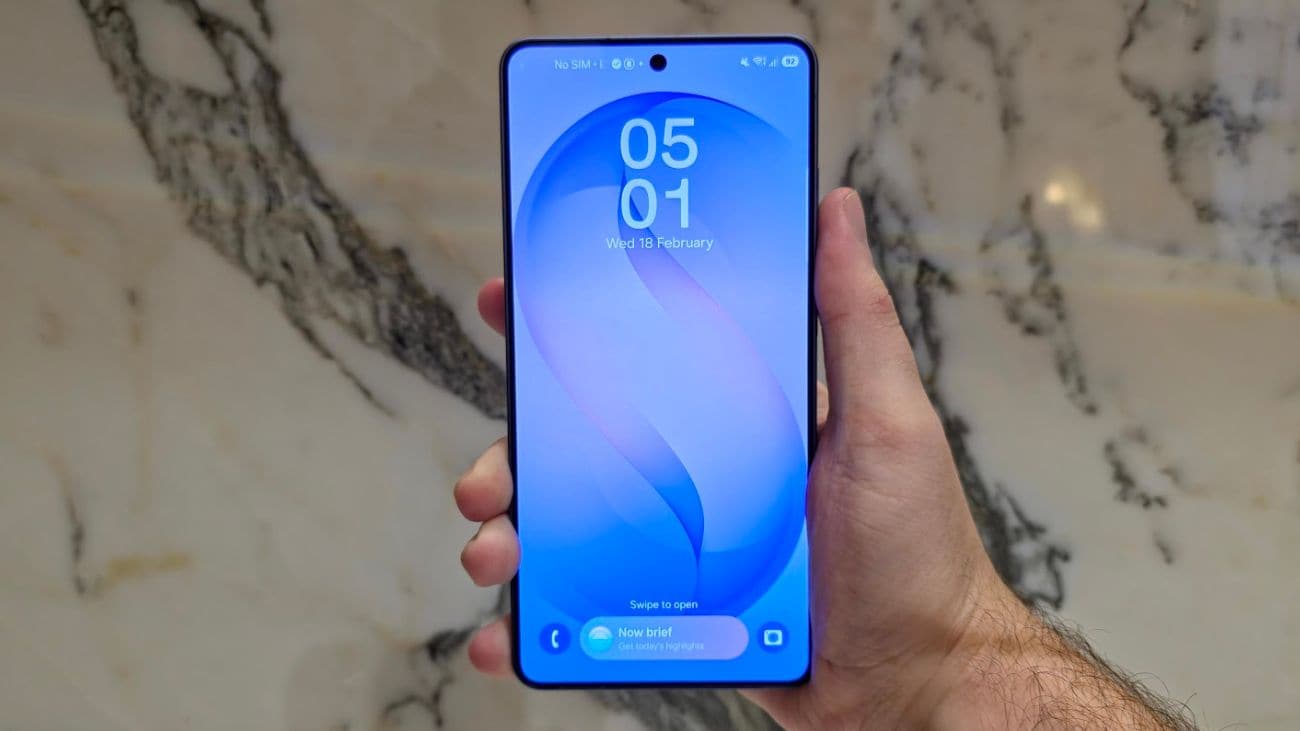
Image credit: Optus (taken by Zachariah Kelly)
The Samsung Galaxy S26 range has finally launched in Australia, and we’re super excited about the three new phones: the Samsung Galaxy S26, the Galaxy S26+ and the Galaxy S26 Ultra.
But amid our excitement for the new phones, we were left stunned by an amazing innovation coming exclusively to the Samsung Galaxy S26 Ultra – Privacy Display.
We’re talking about Privacy Display in this article, and why we think it’s a game changer for protecting your personal information in public.
Not familiar with the Samsung Galaxy S26 range? Read our Introduction to the Samsung Galaxy S26 series overview, or our Samsung Galaxy S26 vs. Galaxy S25 comparison.
The Samsung Galaxy S26 Ultra
Image credit: Optus (taken by Zachariah Kelly)
Privacy Display is a new feature debuting with the Samsung Galaxy S26 Ultra. In essence, Privacy Display prevents viewing the screen of the phone from the side, maintaining clear quality and brightness for the user and direct onlookers.
Think about when you’re using your phone on the train or in a cafe. You might access a banking app, or enter a password for an email or social media account, or see a text that you’d rather stay private. This means entering or revealing sensitive information in public, and could expose you to threats against you and your accounts.
But Privacy Display makes it more difficult for onlookers to recognise what you’re viewing on your phone. When Privacy Display is enabled, the screen remains perfectly visible when looking at it from the front – but prying eyes will have a more difficult time seeing what’s on the phone when looking over your shoulder, from another seat or across the room.
The best part about Privacy Display is that it’s embedded at the software level. While in the past you could have put a screen protector on your phone that achieved the same privacy goals, Privacy Display can be enabled and disabled at will – no additional screen required – meaning for those times that you want to share a video with somebody to the side, it’s exceptionally easy.
The Privacy Display feature on the Samsung Galaxy S26 Ultra can be enabled simply through the Quick Settings panel. Swipe your finger down from the top right of the display, and you’ll see a button labeled ‘Privacy Display’. Tap the icon, and you’re good to go.
Tap your finger on the 'Privacy Display' text, beside the icon, and you’ll see deeper settings, such as ‘Maximum privacy protection’, which intensifies the pixel contrast by bringing down brighter pixels and lifting darker ones.
Additionally, you can have greater control over Privacy Display by setting it to automatically turn on when specific apps are opened, when entering a PIN or password, or when receiving notifications. These additional settings can be accessed by tapping ‘Conditions for turning on’ when holding the ‘Privacy Display’ button.
DISCLAIMER The commentary and review, views and opinions expressed on Well Connected are those of the authors. They do not necessarily reflect the official position of Optus.
Any prices of advertised products and services are correct as at the date of publication.
Black Friday tech deals: when do Black Friday sales start?
12 October 2026
Black Friday tech deals are almost here. This is what you need to know about the big annual sales event.
EOFY scams: how to stay safe
7 October 2026
Stay safe this EOFY season – protect yourself from EOFY scams and read up on the tactics of scammers.
More than a game: celebrating the community spirit of the Koori Knockout
6 October 2026
We’re proud to show up for important events like the Koori Knockout.