The S Pen and the S22 Ultra
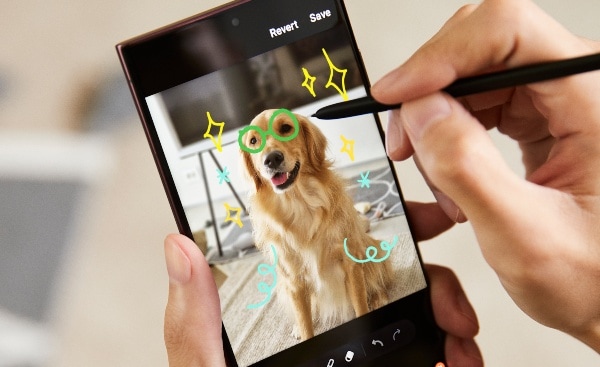
Update: Samsung has recently launched its latest flagship Galaxy S23 Series consisting of the Galaxy S23, Galaxy S23 Plus and Galaxy S23 Ultra. Buy your S23 phone today!
As we already know with the S Pen and the Galaxy Z Fold3, this stylus is a powerhouse of multitasking in so many ways to make your life easier, and most obviously to take notes on your phone and annotate documents. But do you know how many ways you can use your S Pen with the Galaxy S22 Ultra?
As someone who takes the occasional photo, having a remote on-hand is quite useful. The S Pen is ready to work from go; it doesn’t need to pair or connect with the S22 Ultra and can work as a camera trigger (for still or video) from up to 10m away.
First and foremost though, you’ll need to activate the S Pen remote control and customise it to be activated when holding down the S Pen button. What Samsung recommends is hitting the button once to snap a picture, and swishing up and down to switch between front and rear camera. (The video is for the Note20; the same is applicable to the S22 Ultra for these particular gestures).
Just like being able to use it as a camera and video trigger – you can use it to control other programs from your phone as well – clicking through presentations and browsing your photo gallery on compatible apps just to name a few.
You gotta go into advanced features and activate S Pen remote, but for all the things you’re able to do once you turn it on, it’s an easy ask. And of course, it would have to be within Bluetooth range to work properly, and for connecting to some devices you’ll want DeX installed.
Sometimes you want to discreetly take notes – and you can do it with the S Pen on the lock screen, or even with the screen off. Eject the S Pen from your phone and start writing on your screen, and then when it’s done, tap “save in notes” and voila! Your screen off note should be saved in the Notes app.
Some other tips and tricks
- You can translate to different languages easily: It’s as simple as a hover, click and choose to translate from one language to another using the S Pen, ready across all applications where air commands using the S Pen is available.
- You can screenshot on-screen content: Using Air commands you can use smart select to draw around the elements you want to capture and then save to gallery , specifically for screenshotting on-screen content
- You can easily save things for later: While you could use smart select and save everything as images in your gallery, there’s also Scrapbook, which is a dedicated memo-style app.
- You can magnify: Simply by hovering over an element on the screen you should be able to zoom in up to 300% on photos or drawings within compatible apps.
Go forth and enjoy the many uses of a now-embedded S Pen in your Galaxy S22 Ultra…and if the S22 Ultra isn’t quite what you're looking for, check out our range of Samsung phones.
 Share on Facebook
 Share on Twitter
 Share on LinkedIn