Skip to Primary NavigationSkip to ContentSkip to Footer
  • Personal
  • Business
  • Enterprise
  • Deals
  1. Help & Support - Optus/
  2. Articles/
  3. UPDATED LOOP MIGRATION INFORMATION - What you need to know

UPDATED LOOP MIGRATION INFORMATION - What you need to know

We recently communicated to you regarding your Loop migration to RingCentral. Within those communications, we outlined that the migration would need no action from you.

This has now changed, and upon successful migration, you will be required to factory reset your current Loop handsets. This is due to a required step which allows your devices to connect to the new platform.

When do I need to do this?

You are not required to reset your Loop handsets until POST migration. Please note- until you receive the Welcome email YOU ARE NOT REQUIRED TO RESET YOUR DEVICE.
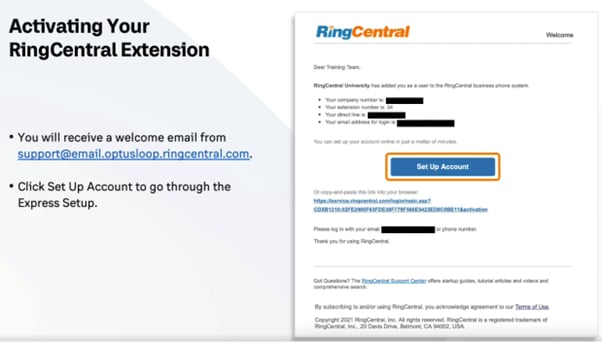
Activating your ring central extension

  1. You will receive a welcome email (pictured above - EXAMPLE ONLY)
  2. Please follow the instructions on the email and activate your new Loop with RingCentral platform access.
  3. You will also lose connectivity on your Loop devices and will not be able to make or receive any calls. This is due to the handsets needing to be "connected" on the new platform.
  4. Once this has occurred, please factory reset your Loop handsets.
  5. After reset, the handsets will reboot, and you can continue business as per normal operations.

Please see reset guides below based off the type and model of handset to assist in this action.

If you have any difficulty completing the tasks above POST MIGRATION, please call us on 133343 or contact your Account Manager.

Reset Guides

Yealink Cordless Handsets (W52P,W56P, W60P, W70P)

  1. On handset Press the "OK" button to enter the main menu.
  2. Select Settings ---> System Settings ---> Base Reset.
  3. Enter the system PIN (default: 0000), and then press the "Done" softkey.
  4. Highlight "Reset to factory," and then press the "OK" softkey

For the Yealink cordless handset models outlined above, after you have reset the device, you may need to re-pair with the base station. To pair handset to base:

  1. Hold the button on side of base until light flashes, then on handset go to setting, registration, register handset (Select base 1)

Yealink IP Desk Handsets (T41, T42, T46, T48, T53W, T54W), Both Model G and S

Factory Resetting on the desk phone range of handsets can be completed via the following steps:

  1. Find the "OK" button on the handset
  2. Hold the 'OK' button down for 6-7 seconds till a menu appears
  3. From the menu, select "Reset to factory settings"

T57

Factory resetting on the desk phone can be done via the following steps:

  1. Find the "Redial" button on the handset
  2. Hold the redial button for 5-6 seconds
  3. Select "Reset to factory settings" when prompted

Conference devices CP860, CP920, CP960

Factory resetting on the conference devices can be done via the following steps:

  1. Find the "OK" button on the handset
  2. Hold the ok button for 10 seconds
  3. Press "Reset to factory settings" when prompted

Conference devices CP925
Factory resetting the CP925 conference devices can be done via the following steps:

  1. Find the left mute button
  2. Hold down the left mute button for 15-20 seconds
  3. Press "Reset to factory settings" when prompted

FAQs

It is intended that there will be minimal disruption to your service, however you can expect approximately 3 hours downtime. The upgrade will take place overnight, typically starting from 8pm local time, and expert teams will be on standby to ensure a smooth transition.

Most upgrades will require no action from yourself. Complex Loop connections may require pre and post upgrade discussions. Double check all email addresses are valid. Your email address (that you received the welcome email at) will be used as your login to Optus Loop with RingCentral.

Historical and saved messages, call logs and personal contacts will not be upgraded over to the RingCentral platform and any saved records will be lost at time of upgrade to RingCentral . Please ensure any key contacts and voicemails are saved prior to the upgrade.

Once your new Optus Loop by RingCentral account is activated the administrator of the account will receive a welcome email with instructions to complete the express setup process. This should be completed as soon as possible to allow for other user services to be activated on your account.

No, you will not lose any saved recordings in Dubber when the upgrade is complete. As part of your service, Dubber will retain all your call recordings, and they'll be available even after the upgrade. Additionally, in our new ring central platform, we are offering inbuilt call recording functionality as an alternative solution. Feel free to reach out to us for more information.


If you have a specific configuration (for example, DND) new codes may be required after your migration to Ring central. Short codes and DTMF can be found here

Please contact 133343 to request to have the Welcome / Activation email to be resent.


User guides are available online via https://www.optus.com.au/for-you/support/business/optus-loop-hub-RC.

To create your password on Optus Loop with the RingCentral platform, see instructions below:

  1. Click the setup account in your activation email from where you'll be prompted to enter a new password
  2. Note that the passwords used for previous platforms will not transfer over. You're required to create a new password for Optus with RingCentral platform access
  3. Enter your desired password into the designated field. Ensure that your password meets the specified criteria for security purposes
  4. After entering your password, proceed to confirm it by re-entering it into the provided field
  5. Once your password is successfully confirmed, you will gain access to the platform

Following migration of your account to the new Optus Loop by RingCentral product if your extensions started with a leading 0 you will no longer be able to dial with a leading zero on extensions. For example, where you may previously have dialled "010" this can now be dialled as "1010". If your extension was previously a single digit 0 this can now be dialled as "1".

After your account is transferred to Optus Loop by RingCentral you may notice that a different phone number is listed as your Company Main Number. This is due to a requirement of the Optus Loop by RingCentral product to have a unique phone number per user and that this phone number be different to the main number on your account.

This change has no impact on your service or the function of the main number on your account, and will not incur any additional costs.

Your handsets may require reset post your Loop migration. Please check the handset instruction guides above to confirm if your handset falls into this category.

If you experience problems with your devices following their activation on the Optus Loop by RingCentral product, and power cycling does not resolve the issue, please call us on 133343 for trouble shooting steps.

Optus will be providing additional support for users of the following Optus Loop features:

  • Contact Centre
  • Conferencing
  • Receptionist Client
  • Dubber
  • CRM Integrations

If your organisation is a user of one or more of the above Optus Loop features you will be contacted prior to your Optus Loop by RingCentral activation to discuss your requirements and ensure a smooth migration of your Optus Loop services.

Related Articles

Your bill explained

How to request more time to pay your bill

Change ownership of your service

How to unlock your mobile device from the Optus network

A guide to eSIM

Popular articles

Orders, deliveries & returns

How to check network status & outages

Home Internet WiFi username & password help

Home Internet troubleshooting

Get in touch

  • Get My Optus app
  • Contact us
  • Find a store

Need more help?


Getting started


Billing and recharge


Troubleshooting


Device Guides


5G Mobile


Broadband & NBN


Manage my account


Optus Sport


Email


5G Home Broadband


Entertainment


Coverage and travel


Home phone


Business


Consumer advice


More from Optus

  • My Optus App
  • SubHub
  • Accessories
  • Student Hub

Customer Service

  • Contact Us
  • Help & Support
  • Store Locator
  • Payment Assistance Policy
  • Feedback & Complaints
  • Report a service outage

About Us

  • About Optus
  • Careers
  • Corporate Information
  • Media Releases
  • About Singtel
  • Accessibility

  • Blog
  • Connect With Us on facebook
  • Connect With Us on instagram
  • Connect With Us on tiktok
  • Connect With Us on linkedin
  • Connect With Us on twitter
  • Connect With Us on youtube

  • Critical Information Summaries
  • Standard Agreement
  • Privacy, Security & Safety

Connect with us

  • Blog
  • Connect With Us on facebook
  • Connect With Us on instagram
  • Connect With Us on tiktok
  • Connect With Us on linkedin
  • Connect With Us on twitter
  • Connect With Us on youtube
  • Critical Information Summaries
  • Standard Agreement
  • Privacy, Security & Safety
© 2026 Singtel Optus Pty Limited
Optus acknowledges the Traditional Custodians of the lands, waters and skies across Australia. We pay our respects to Elders past and present and honour the strength and continuity of the world's oldest living cultures.