Skip to Primary NavigationSkip to ContentSkip to Footer
  • Personal
  • Business
  • Enterprise
  • Deals
  1. Help & Support - Optus/
  2. Articles/
  3. How to change or check your phone number listing

How to change or check your phone number listing

An unlisted service is when your name, address or telephone number is:

  • NOT listed in printed or online editions of the White Pages directory; and
  • your details will NOT be provided by Information (Directory Assistance)

In this article we'll show you how to change your mobile or home phone number to listed or unlisted.
How to list / unlist your number

  1. Log in to My Account
  2. If you only have one service, select View Details
    If you have multiple services, select the Service
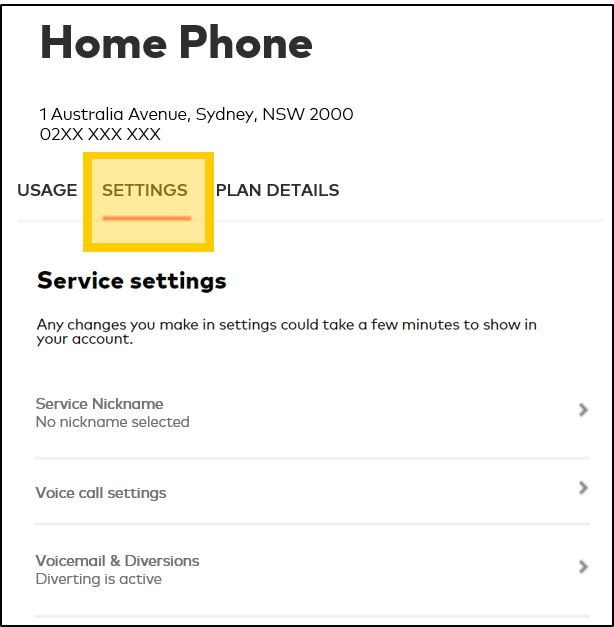
  3. Select Settings
    Click for your Home Phone Settings in My Account

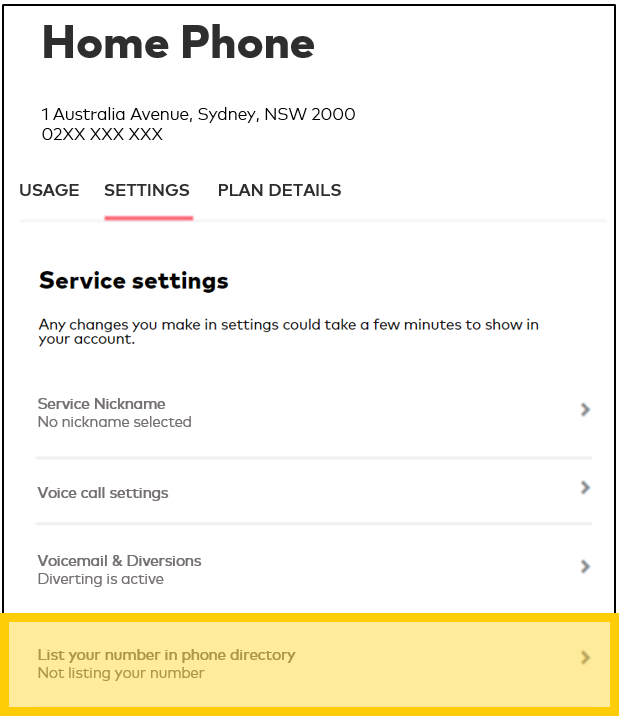
  4. Select List your number in phone directory
    List your home phone number in the directory

  5. Select whether you want to list your number in the phone directory or not
  6. Read the T&Cs, then tick the box and click Save

Call us on 133 343 to request that your existing phone number is changed to listed or unlisted (silent).

You can also contact Sensis directly to organise changes to your directory listing:

  • Phone: 1800 810 211
  • Fax: 1800 639 169
  1. Log in to My Account
  2. If you only have one service, select View Details
    If you have multiple services, select the Service
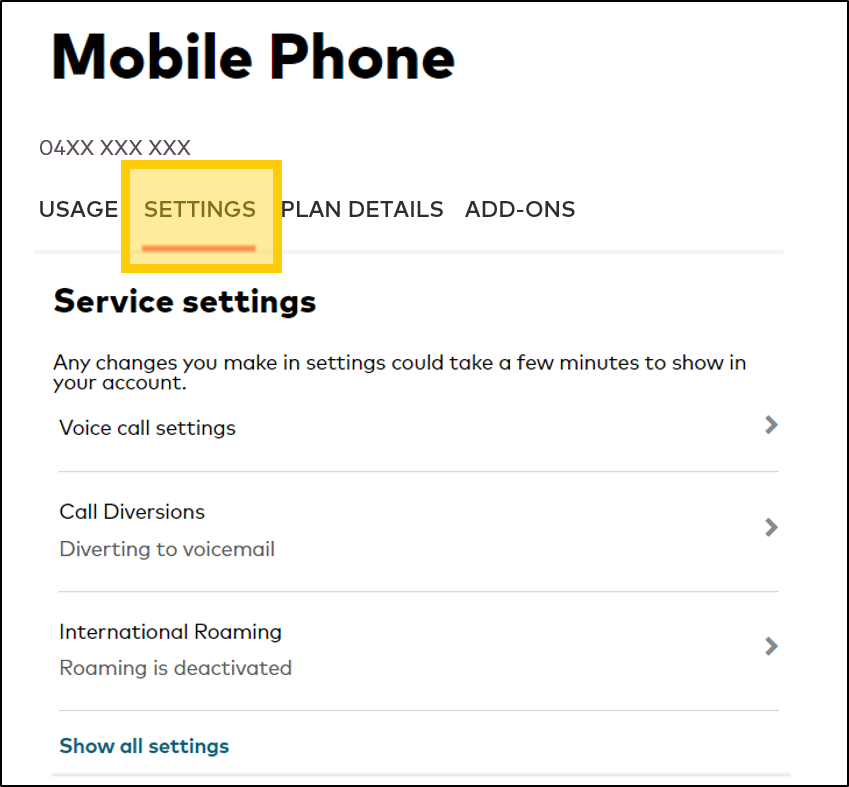
  3. Select Settings
    Click the Settings tab in My Account

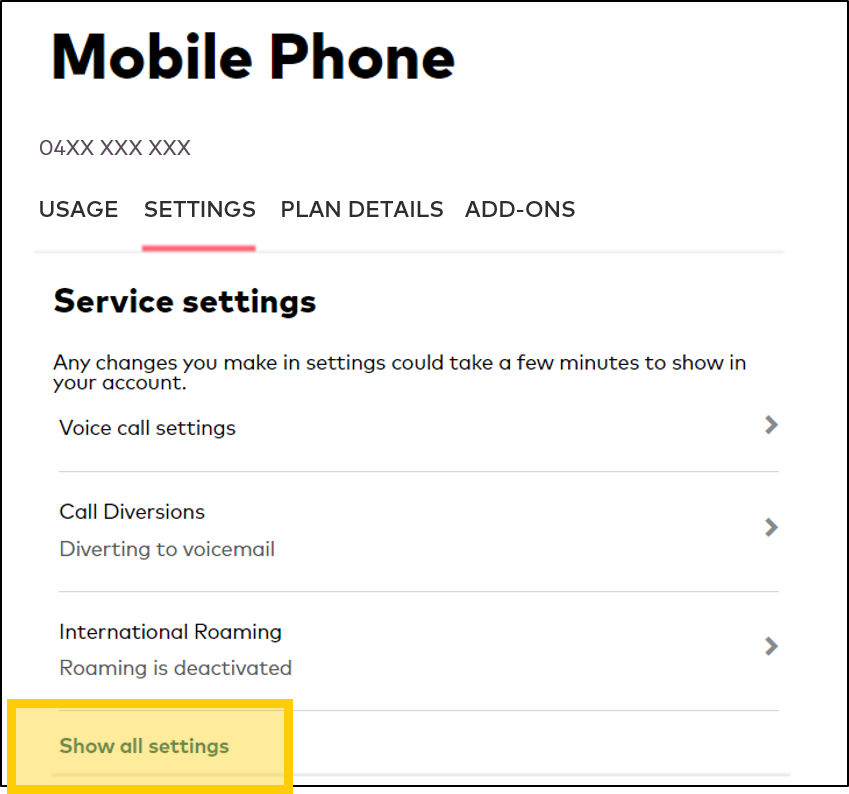
  4. Select Show all Settings
    Click Show all settings in My Account

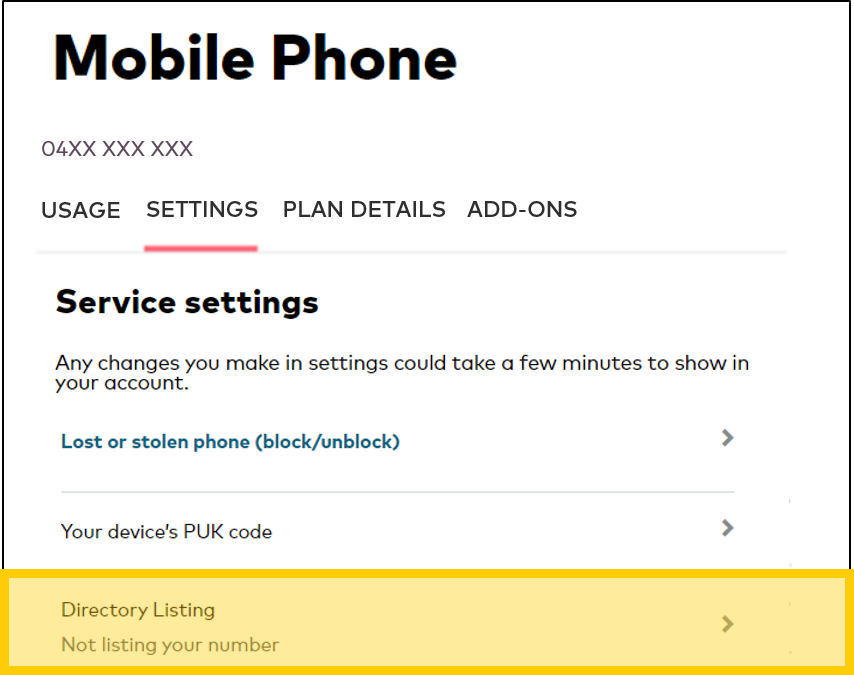
  5. Select Directory Listing
    List your mobile number in the directory via My Account

  6. Select whether you want to list your number in the phone directory or not
  7. Read the T&Cs, then tick the box and click Save

If you need to speak to us about your request, you can reach us on:

  • Personal mobile: 133 937
  • Business mobile: 133 343

Phone number listing FAQs

  1. Once the request has been lodged, the listing will generally be removed from the online directory in 7 - 10 working days

  2. Changing your phone number to a silent/unlisted number does not remove our obligation to pass your details onto the Integrated Public Number Database (IPND) or Emergency Services Database (ESS)
    • Information from the Emergency Services Database is available only to Law Enforcement Agencies and Emergency Service
    • More information on AMCA's IPND information page

  3. Silent/unlisted numbers will not stop telemarketing activity or contact
    • To avoid receiving unwanted marketing calls or faxes from businesses, you can add your Mobile or Office/Home Phone number(s) to the Australian Government's Do Not Call Register
    • You can also unsubscribe or opt-out of Optus marketing communication
Home phone numbers
  • If you have an Optus Direct, Optus nbnTM or Optus Cable home phone there is no additional fee to list or unlist your existing number
  • If you have or request a special listing, your directory service provider may charge you additional fees

Mobile Phone Numbers
  • For standard Optus mobile phone numbers, there's no additional fee to list or unlist your existing number
  • If you've requested a special listing, your directory service provider may charge you additional fees

Closing dates for the printed version of the White Pages can be found in the Sensis FAQs for White Pages.

If you want to change the status of your listing in the printed version of the White Pages, you should contact us at least 7 - 10 working days before the dates listed in the FAQs.

If you're receiving nuisance or unwelcome calls/messages, see our How to stop unwelcome or nuisance calls & messages article for help.

Having your service unlisted doesn't automatically prevent your service number from being displayed on another person's handset when you call them.

If you wish to prevent others from seeing your phone number when you call, you can remove Caller ID for your mobile or home phone.

Related Articles

Your bill explained

How to change plans

Change ownership of your service

How to view your Optus bill

My Optus service is not working: troubleshooting index

Popular articles

Orders, deliveries & returns

How to check network status & outages

Home Internet WiFi username & password help

Home Internet troubleshooting

Get in touch

  • Get My Optus app
  • Contact us
  • Find a store

Need more help?


Getting started


Billing and recharge


Troubleshooting


Device Guides


5G Mobile


Broadband & NBN


Manage my account


Optus Sport


Email


5G Home Broadband


Entertainment


Coverage and travel


Home phone


Business


Consumer advice


More from Optus

  • My Optus App
  • SubHub
  • Accessories
  • Student Hub

Customer Service

  • Contact Us
  • Help & Support
  • Store Locator
  • Payment Assistance Policy
  • Feedback & Complaints
  • Report a service outage

About Us

  • About Optus
  • Careers
  • Corporate Information
  • Media Releases
  • About Singtel
  • Accessibility

  • Blog
  • Connect With Us on facebook
  • Connect With Us on instagram
  • Connect With Us on tiktok
  • Connect With Us on linkedin
  • Connect With Us on twitter
  • Connect With Us on youtube

  • Critical Information Summaries
  • Standard Agreement
  • Privacy, Security & Safety

Connect with us

  • Blog
  • Connect With Us on facebook
  • Connect With Us on instagram
  • Connect With Us on tiktok
  • Connect With Us on linkedin
  • Connect With Us on twitter
  • Connect With Us on youtube
  • Critical Information Summaries
  • Standard Agreement
  • Privacy, Security & Safety
© 2026 Singtel Optus Pty Limited
Optus acknowledges the Traditional Custodians of the lands, waters and skies across Australia. We pay our respects to Elders past and present and honour the strength and continuity of the world's oldest living cultures.